Eat the Frog Daily Planner
Tell your AI what is on your plate. It picks your one frog and plans the day in your own Notion.
Each morning, type or paste everything you have to do, in any order. Your AI picks one frog (the task that matters most and that you are likeliest to put off) plus at most 3 others, shows you the plan, and saves it to Notion after you say yes. In the evening it rolls whatever you did not finish to the next day. Ask for "report" and get one HTML file: today's plan, what is waiting on the list, and the last 14 days.
Tested by Prototion in Claude and ChatGPT
- Notion template
- Claude Skill
- ChatGPT project files
- Offline HTML report
- Setup guide
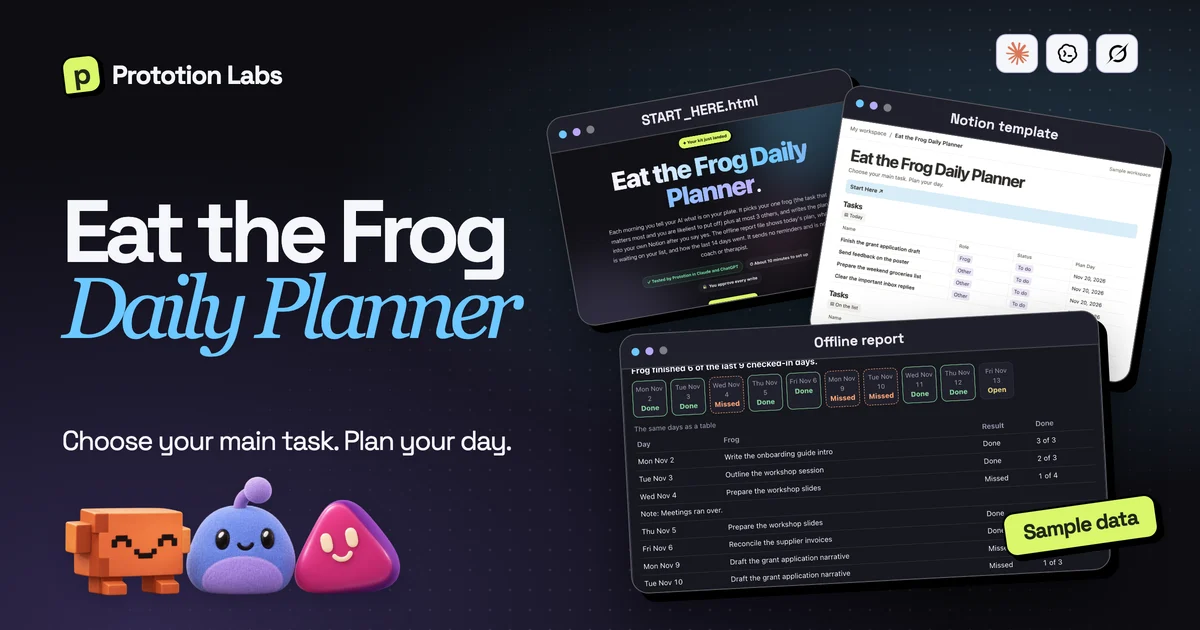
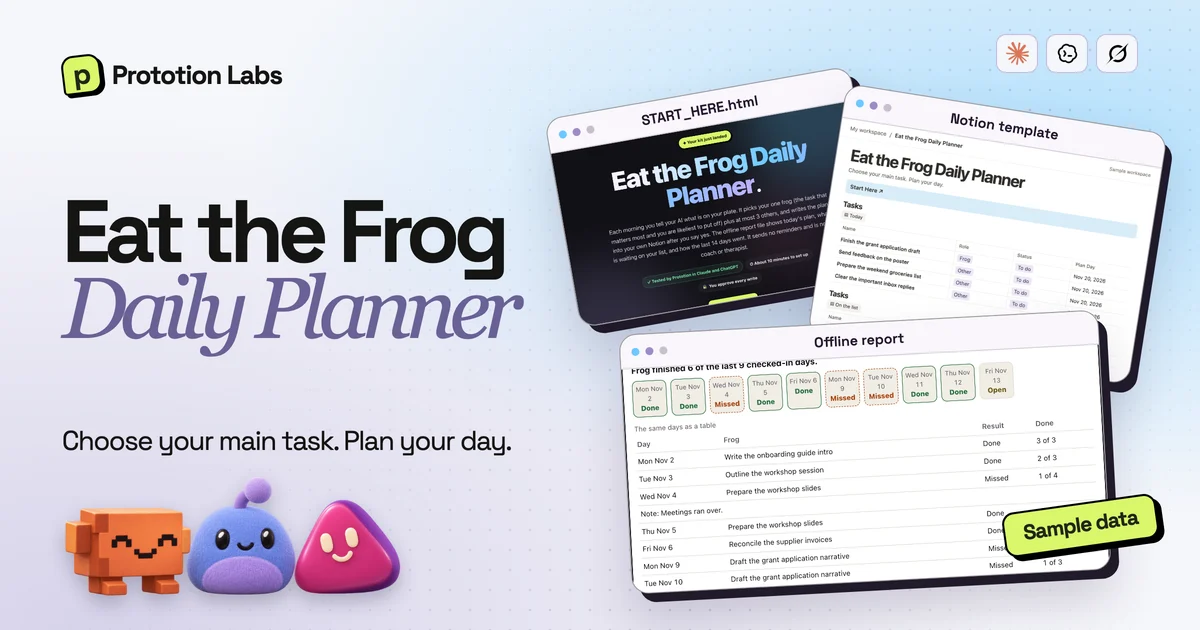
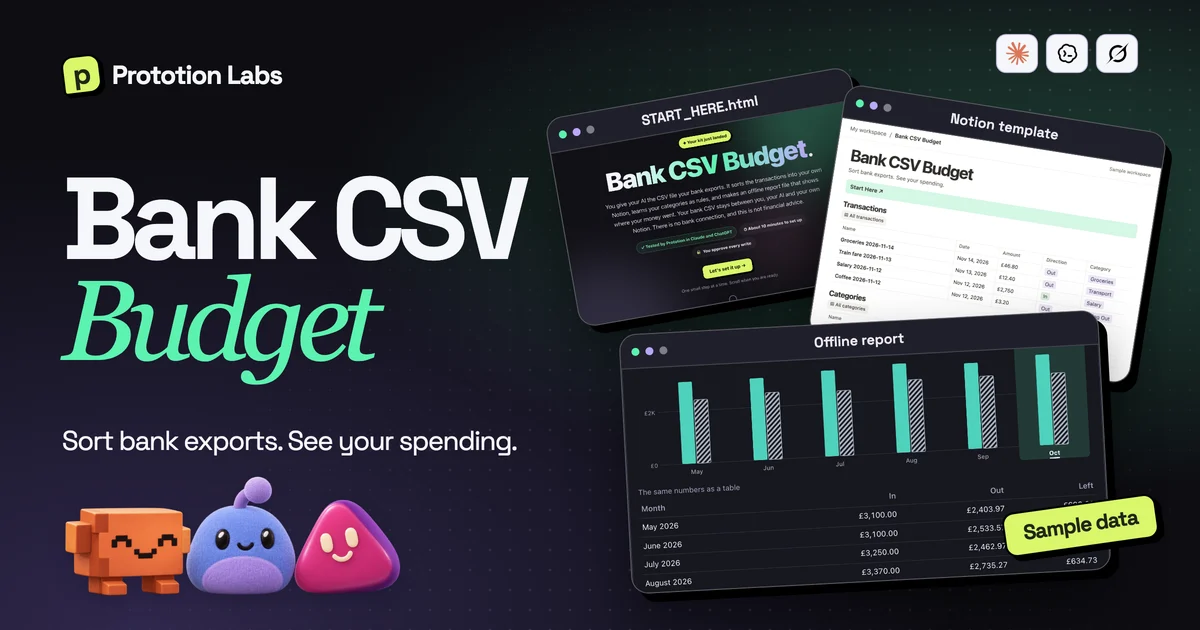
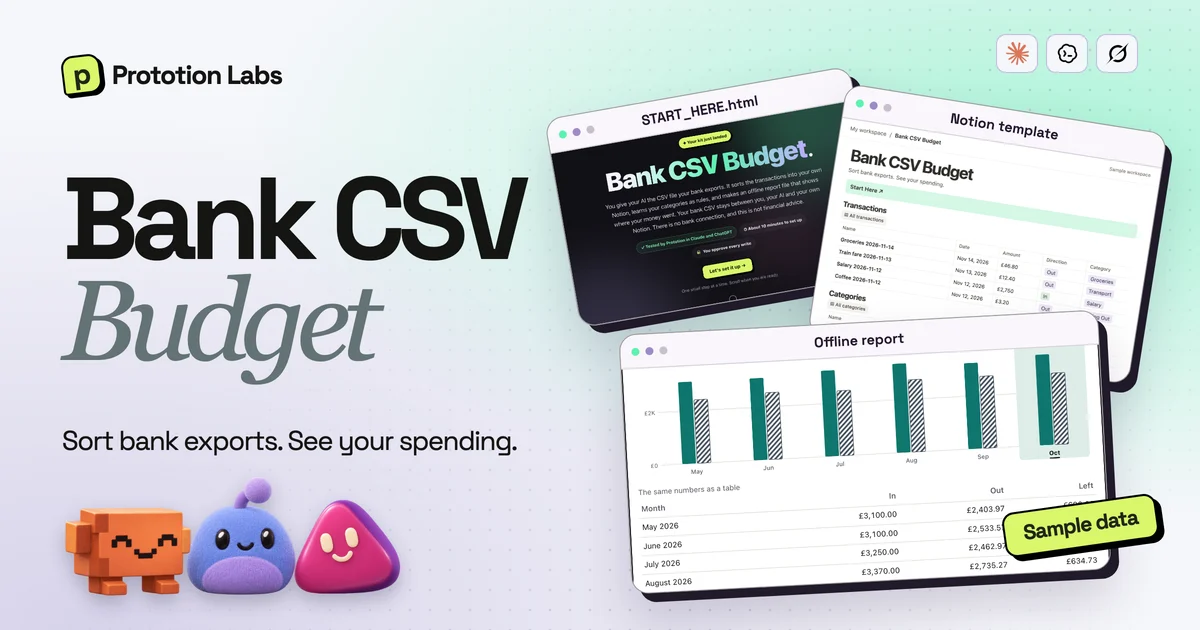
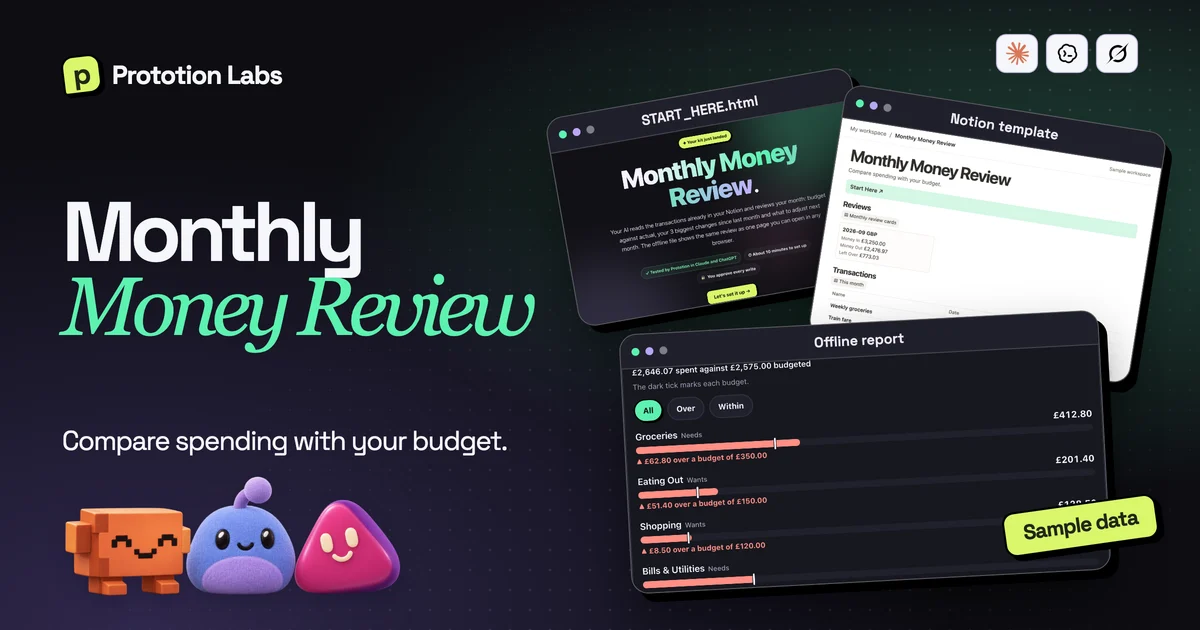
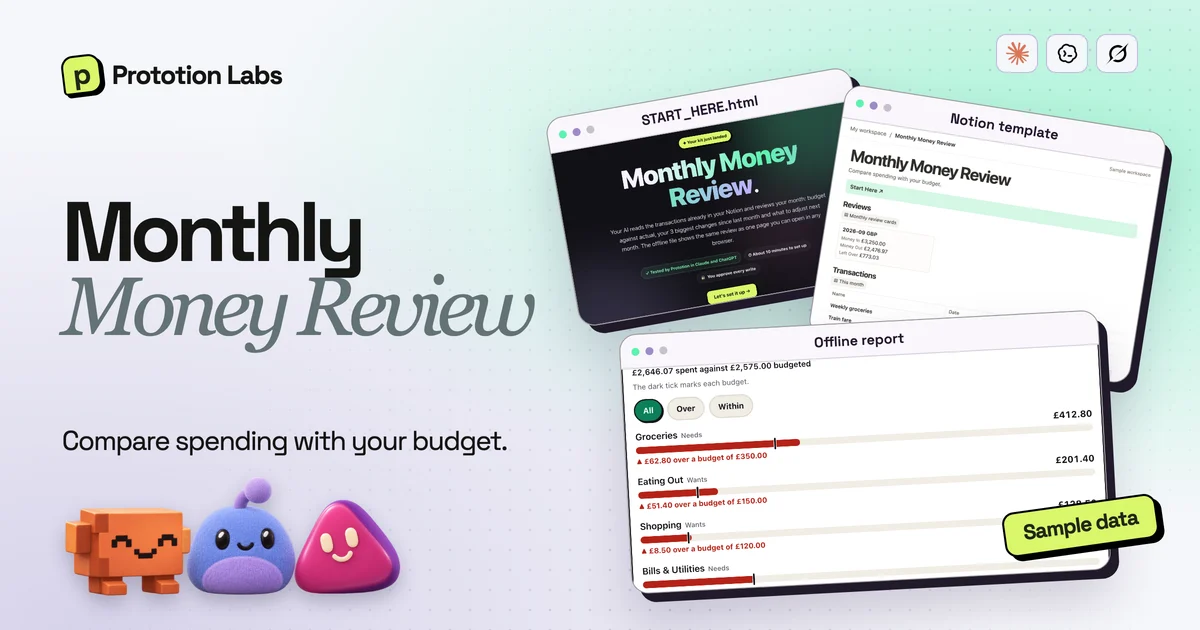
What you will actually see.
Screens from the kit's sample report and template layout, with invented sample data.
Built for one job. Done the same way every time.
- 01
One frog, not a list of twenty
Your AI looks at due dates, what you keep putting off, and what other tasks are waiting on, and picks one frog with a one-line reason. At most 3 other tasks join it. The rest stay on the list for another day. You can say "make the dentist the frog" and it swaps.
- 02
You approve before anything is saved
It shows one table (task, role, due date, how many times carried, and what it will do) and waits for your yes. A task already on your list is skipped; one that might be the same thing in other words is marked CHECK and saved only if you say it is new.
- 03
Unfinished tasks roll forward
At the evening check-in you say what you finished. It shows what it will change: done, carried to the next day, or dropped. Carried tasks keep a count, so the thing you have put off three times is visible. It states the count plainly and does not lecture.
- 04
Your plan lives in your Notion
You duplicate one page into your own Notion: a Tasks database and a Days database. Sort, filter and fix any row yourself. No new app to sign up for.
- 05
A report you can open offline
Ask for "report". One HTML file: your frog and the others with tick boxes, the list of what is waiting (filter by overdue or carried), and the last 14 days. It loads nothing from the internet and changes nothing in Notion. Ticks stay in the file; Notion changes only when you tell your AI.
- 06
Use the AI you already have
The workflow is the product, and it is the same on each AI. You use your own plan.
From download to your first report.
- 01
Copy the Notion template
Duplicate the Eat the Frog Daily Planner page into your own Notion and check it with the checklist.
- 02
Set up your AI
Follow the Claude steps or the ChatGPT steps. Connect your Notion, and keep write actions on approval where you can.
- 03
Dump your day, approve the plan
Type or paste everything on your plate. Check the frog and the others, change anything you want, and say yes.
- 04
Check in at the end of the day
Say what you finished. Approve what it changes, and unfinished tasks move to the next day. Say "report" any time for the HTML file.
One ZIP, ready to go.
One ZIP, Eat the Frog Daily Planner v1.0, with these files:
START_HERE.html: open this first. Setup in three steps, how a day works, and the honest limits.Notion/TEMPLATE_LINK.md: the link to the template, which you duplicate into your Notion.DUPLICATION_CHECKLIST.md: check your copy is right.
Claude/CLAUDE_SETUP.mdFIRST_CHAT_MESSAGE.mdfrog-planner-operator.zip: the skill you upload to Claude.
ChatGPT/QUICK_START.mdPROJECT_INSTRUCTIONS.md: you paste this into a ChatGPT project.FROG_PLANNER_CONTEXT.mdandreport.html: the two files you add to the project.FIRST_CHAT_MESSAGE.md
Agents/: early setup notes, not yet tested by Prototion.Claude_Duet/DUET_SETUP.mdOpenAI_dot/DOT_BRIEF.md,FROG_PLANNER_CONTEXT.md,report.htmlGrok_Bot/BOT_SETUP.md,FROG_PLANNER_CONTEXT.md,report.html
Report/report.html: the report template.sample/frog-planner-report.html: a sample report with invented tasks, which you can open now.
Support/TROUBLESHOOTING.md: fixes for common problems.
Accounts you probably have.
- A Notion account. A free one is fine for the template itself.
- Claude or ChatGPT.
- Claude: any plan, including Free. You need file creation turned on and the Notion connector.
- ChatGPT: any plan that has Projects. The Free plan allows 5 project files and the kit uses 2. You need the Notion app connected.
- A web browser, to open the report.
- Claude Duet, OpenAI dot and Grok Bot need paid plans, and some need a waitlist or a certain country. They are early notes only, not yet tested by Prototion.
Privacy
- Your tasks go to the AI you choose, under that AI's own terms, and to your own Notion once you approve. They do not go to Prototion.
- The report file is offline: it loads nothing from the internet and sends nothing anywhere.
- Keep private things out of task names if you would not want your AI provider to see them.
What it cannot do.
- It knows only what you tell it in chat and what is in your Notion. It sends no reminders: the plan and the check-in happen only when you open a chat and ask.
- The frog is the AI's best pick from what you told it, not a measure of importance. You have the last word.
- Ticking a task in the report file changes only that file in your browser. Notion changes only when you tell your AI at the check-in and say yes.
- Carried tasks are shown plainly. It does not judge your day or give productivity or wellbeing advice.
- Claude can save the report file for you. Other AIs may only print its code, and then you save it yourself.
- This is a planning aid, not a therapist, coach or doctor.
Who it is not for.
- You want reminders or a calendar that nudges you. This has none.
- You want tasks to sync with another app by themselves. It works from what you say in chat.
- You want a coach or help with how you feel about your workload. It only plans.
- You do not want to use Claude or ChatGPT, or Notion.
Eat the Frog Daily Planner: FAQ
Has Prototion tested this?
Tested by Prototion in Claude and ChatGPT. The Claude Duet, OpenAI dot and Grok Bot notes are early and not yet tested by Prototion.
Which plans do I need?
Claude: any plan, including Free. You must be able to connect Notion and turn on file creation. ChatGPT: any plan that has Projects. The Free plan allows 5 project files and the kit uses 2. You also need a Notion account. Claude Duet, OpenAI dot and Grok Bot need paid plans, and some need a waitlist or a certain country.
What is a "frog"?
The task that matters most today and that you are likeliest to put off. The idea is to do it first. Your AI picks it from what you tell it: overdue or due today first, then the one you dread or others wait on, then the one carried most often.
Why only 4 tasks a day?
One frog and at most 3 others. That is the rule of the kit. Everything else stays on your list and is looked at again next time you plan.
Does the AI save things without asking?
It asks first. It shows one table and waits for your yes. A yes covers only that table. In Claude you can also set the Notion write tools to "Needs approval", so it asks twice.
What are SKIP and CHECK?
SKIP means the task is already on your list, so no second row is made. CHECK means it might be the same thing in other words ("call the dentist" and "book dentist"). It is saved as new only if you say so.
What happens to what I did not finish?
At the evening check-in you say which tasks are done. For each unfinished one you choose carry (it moves to the next day and its Carried count goes up by one) or drop (it stays in Notion marked Dropped). Nothing is deleted.
The AI picked the wrong frog.
Say "make [task] the frog". It changes the roles of the two tasks involved, after your yes.
Can it delete or change my tasks?
It never deletes a task or a day. It changes only the properties it needs: Status, Plan Day, Role, Done On and Carried. If a row is wrong, fix it in Notion yourself.
I ticked boxes in the report but Notion did not change.
Ticks stay in the report file, in your browser. Tell your AI at the check-in and say yes.
Will it remind me?
No. The AI works only while you chat with it. There are no reminders or alerts.
Where do my tasks go?
To the AI you choose, under that AI's own terms, and to your own Notion once you approve. Not to Prototion. The report file is offline: it loads nothing from the internet and sends nothing anywhere.
What if my AI cannot save the report?
Some AIs only print the report as code. Save it as a plain-text file named `frog-planner-report.html` and open it in your browser. If it cannot do that either, it gives the plan as a short list in chat.
Is it a therapy, coaching or productivity programme?
No. It is a planning aid, not a therapist, coach or doctor. It shows carried tasks plainly and gives no advice on health, money or how you feel about your work.
Eat the Frog Daily Planner. Yours in your Notion.
Eat the Frog Daily Planner by Prototion Labs. For Notion. This is not made by or endorsed by Notion, Anthropic or OpenAI.
Pairs well with.
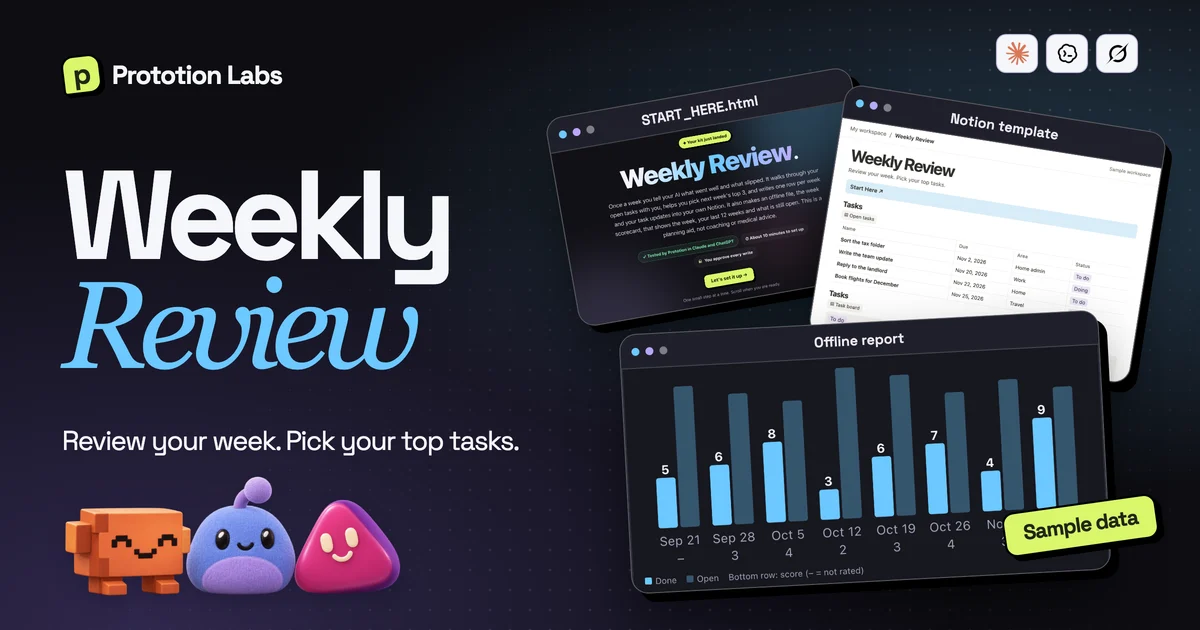
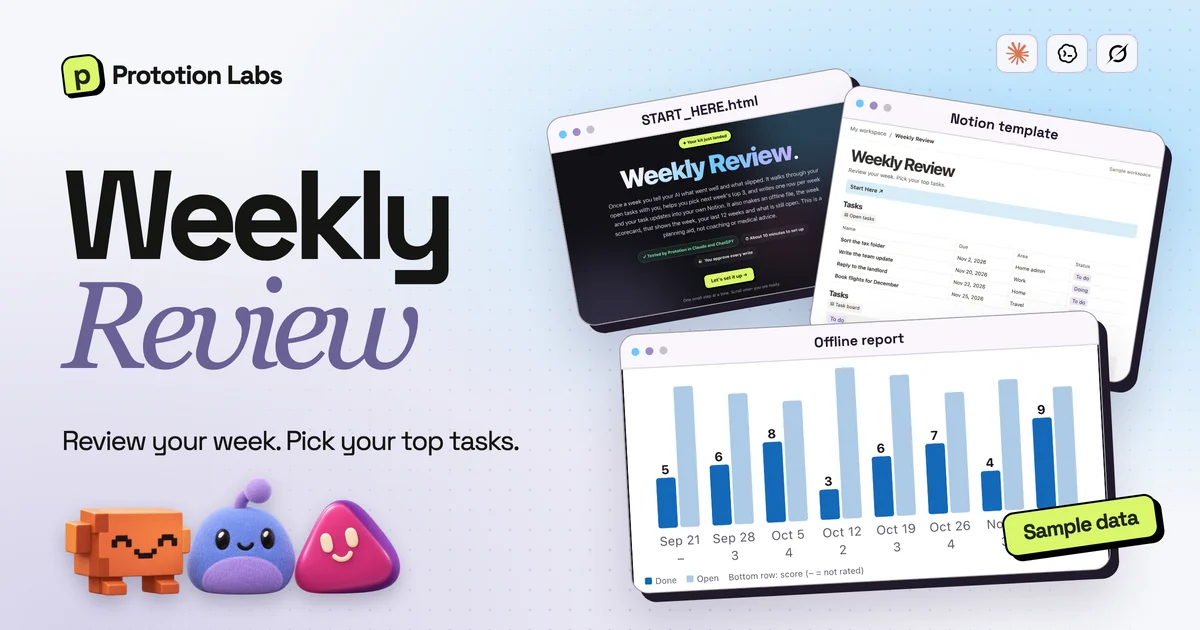 Weekly ReviewSay "review". Your AI walks you through your week, plans your top 3, and writes it into your own Notion after your yes.
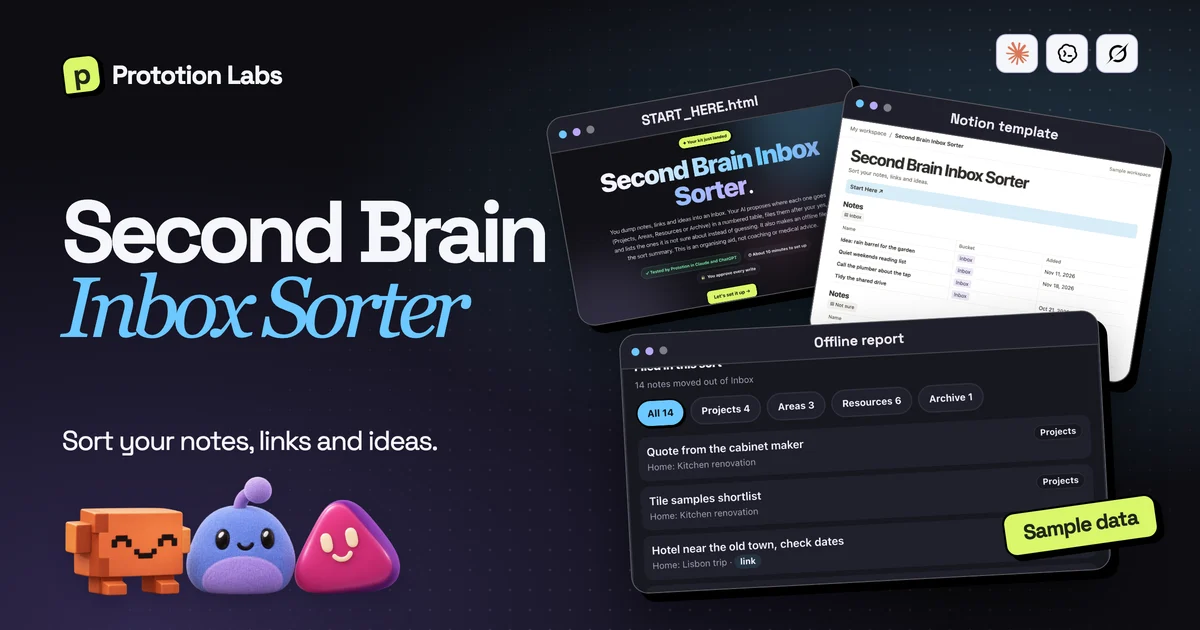
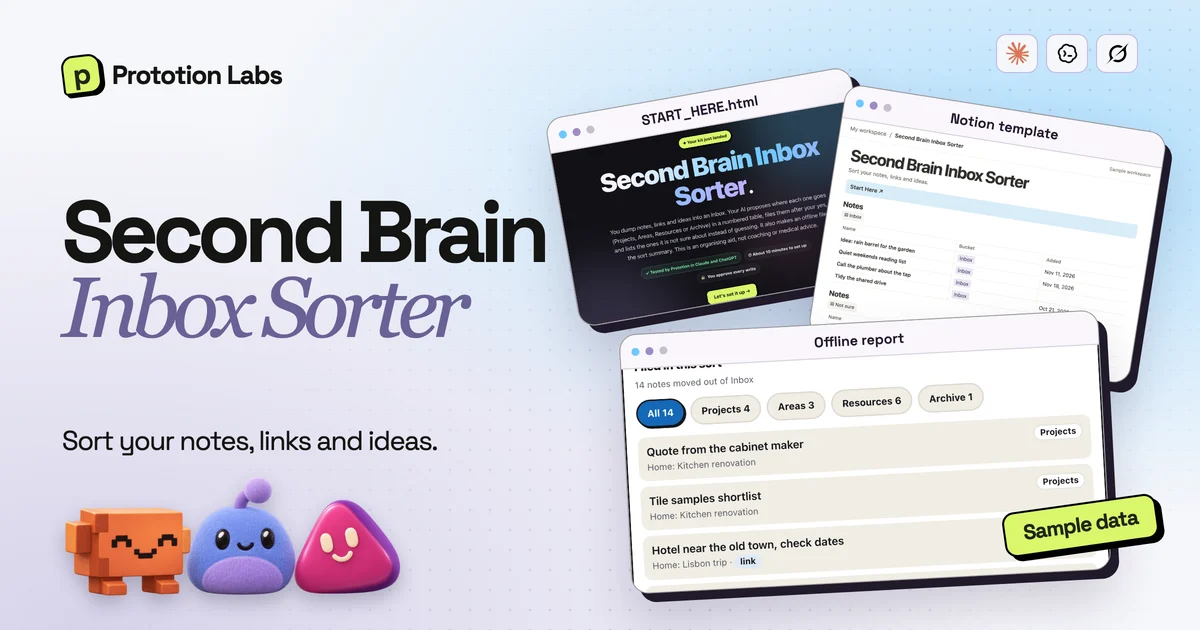 Second Brain Inbox SorterSay "sort". Your AI proposes where each note, link and idea goes, and files them in your own Notion after your yes.
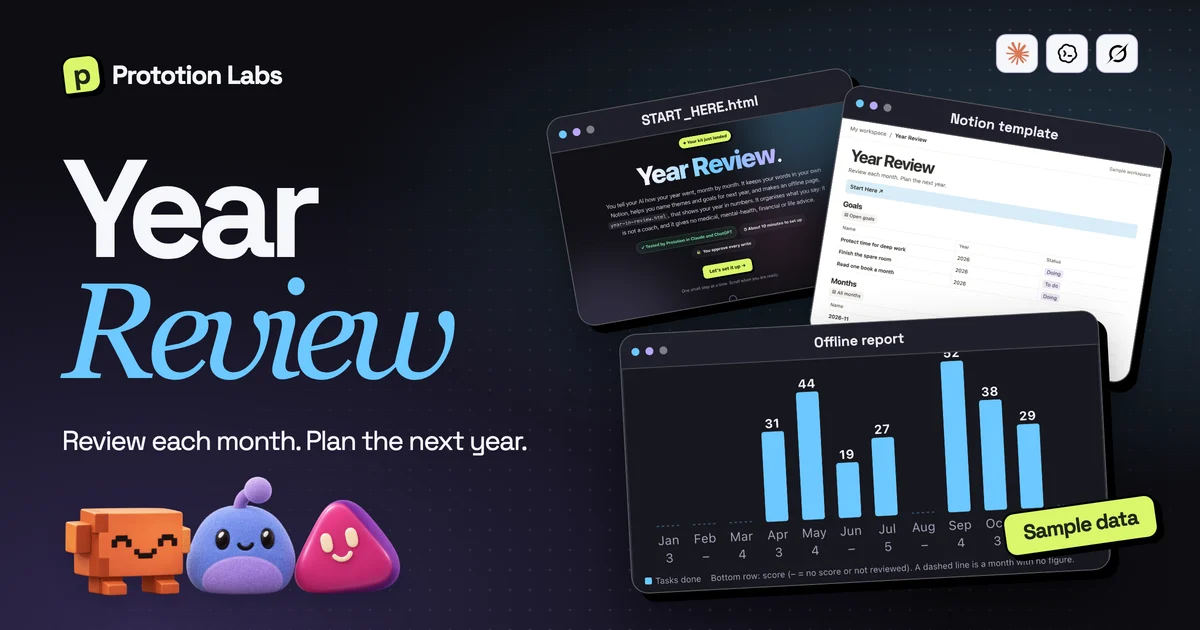
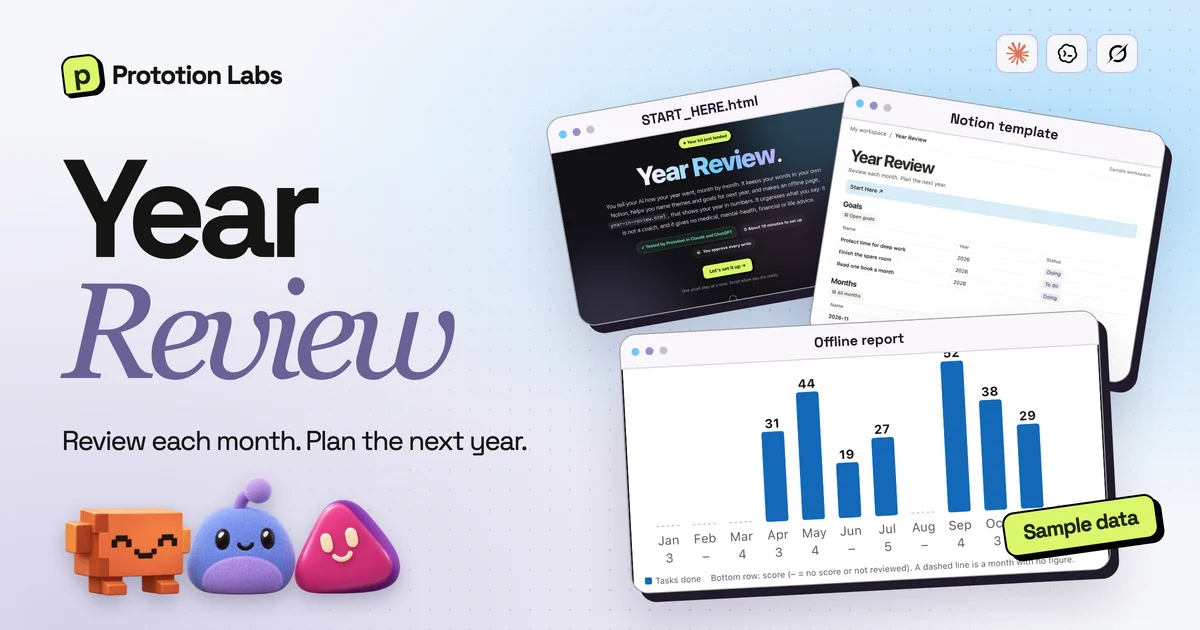 Year ReviewLook back on your year month by month, plan the next one, and get your year in numbers on one page.
Every kit. One download.
All 16 workflow kits in one ZIP: study, money, planning and habits. Each one has its own Notion template, Claude Skill, ChatGPT files and offline report. $99 instead of $334 one by one.