Bank CSV Budget
Export your bank CSV. Your AI sorts it into your own Notion and shows you where the money went.
Give Claude or ChatGPT the CSV file your bank exports. It shows you every transaction sorted by payee, with a category for each. You approve, it saves them to Notion and offers to remember your choices as rules. Then you ask for a report and get one HTML file: money in, money out, spending by category, twelve months.
Tested by Prototion in Claude and ChatGPT
- Notion template
- Claude Skill
- ChatGPT project files
- Offline HTML report
- Setup guide
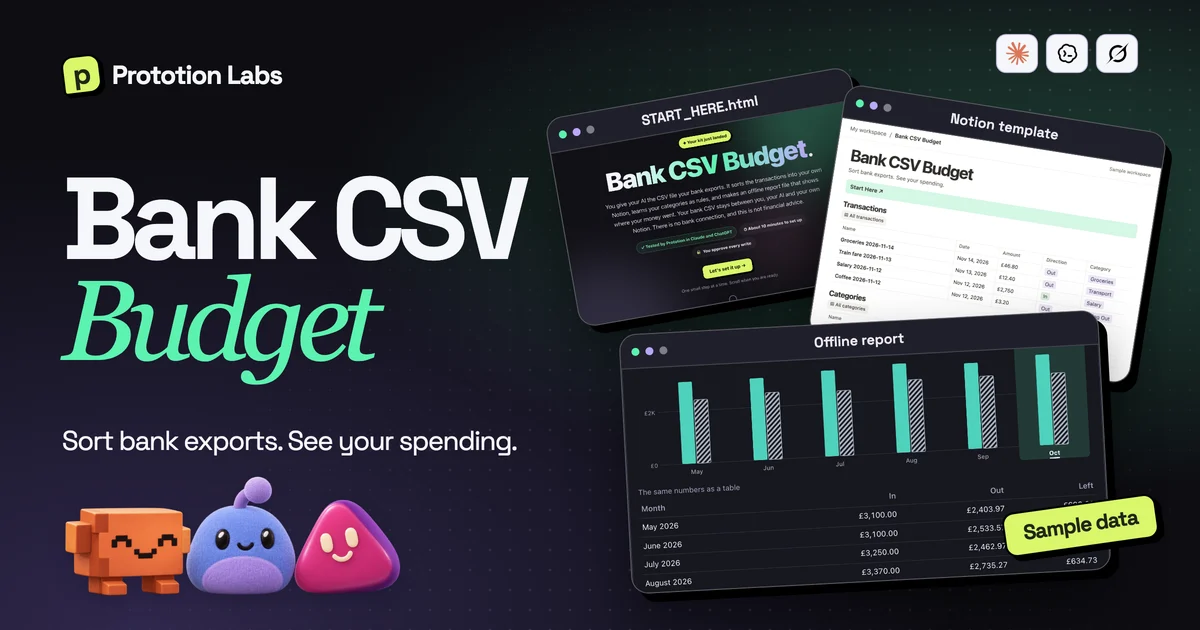
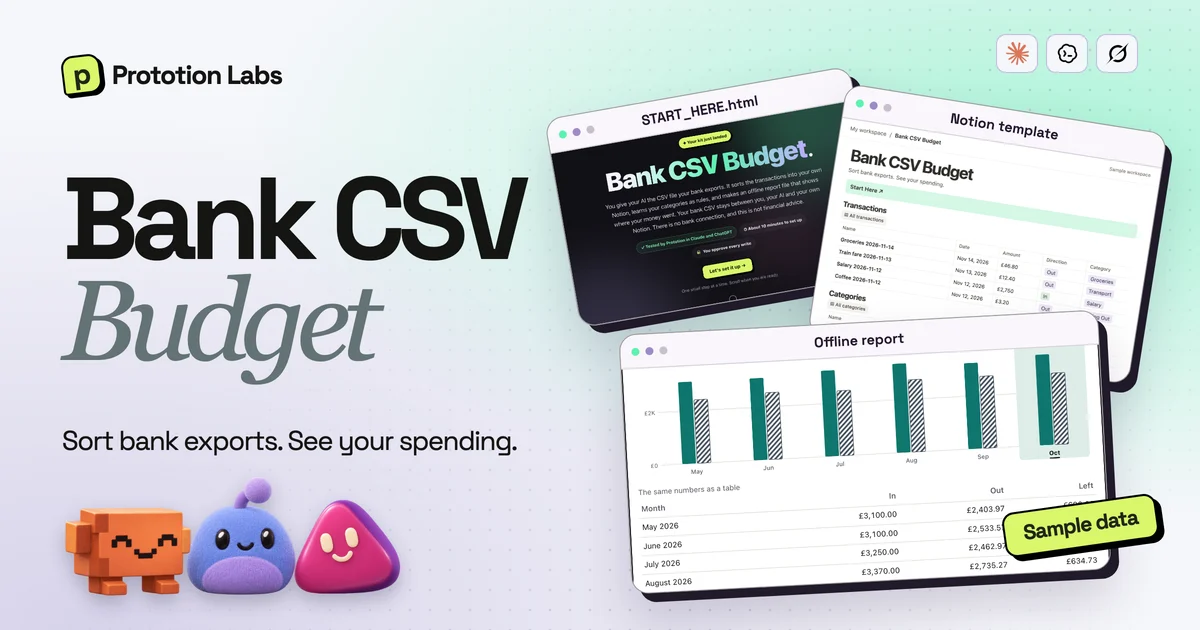
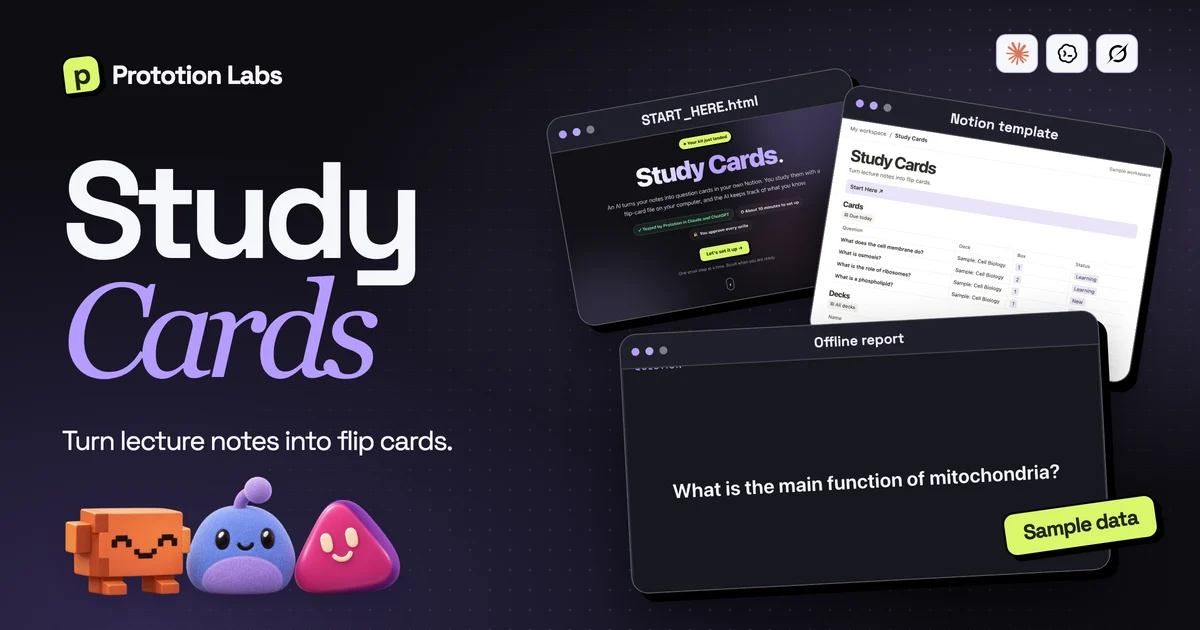
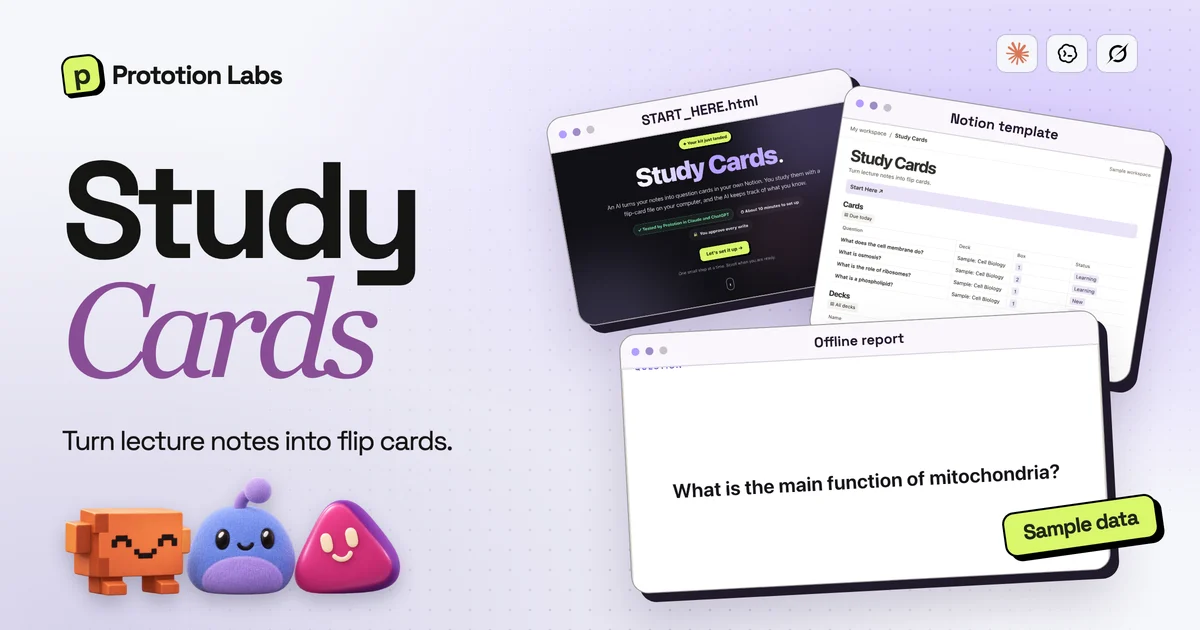
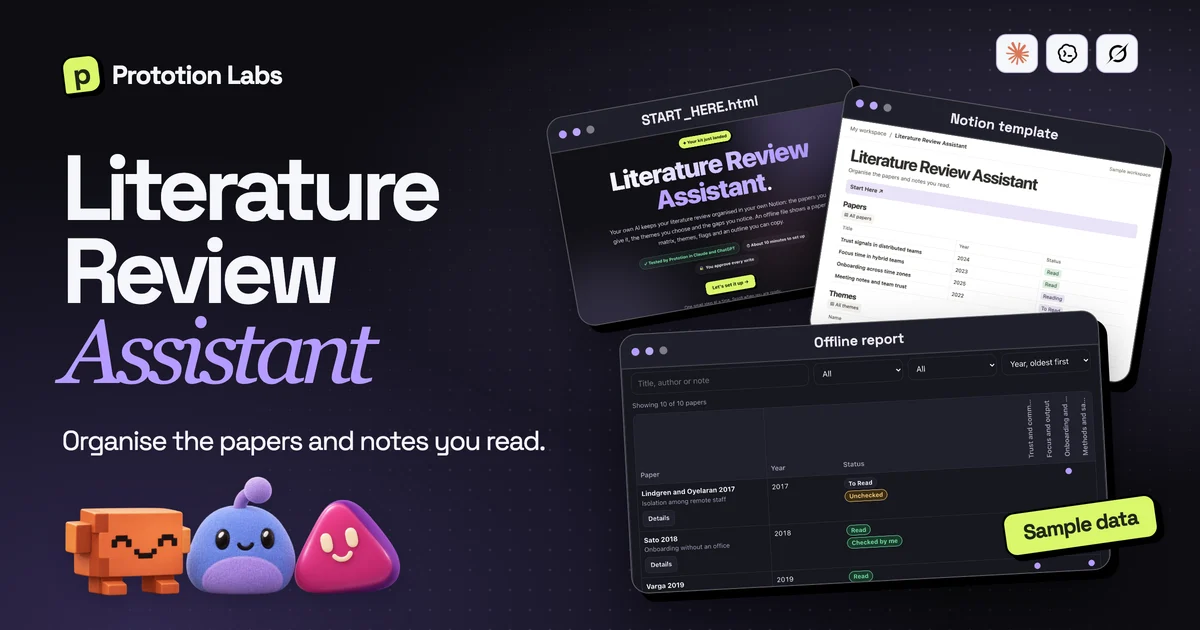
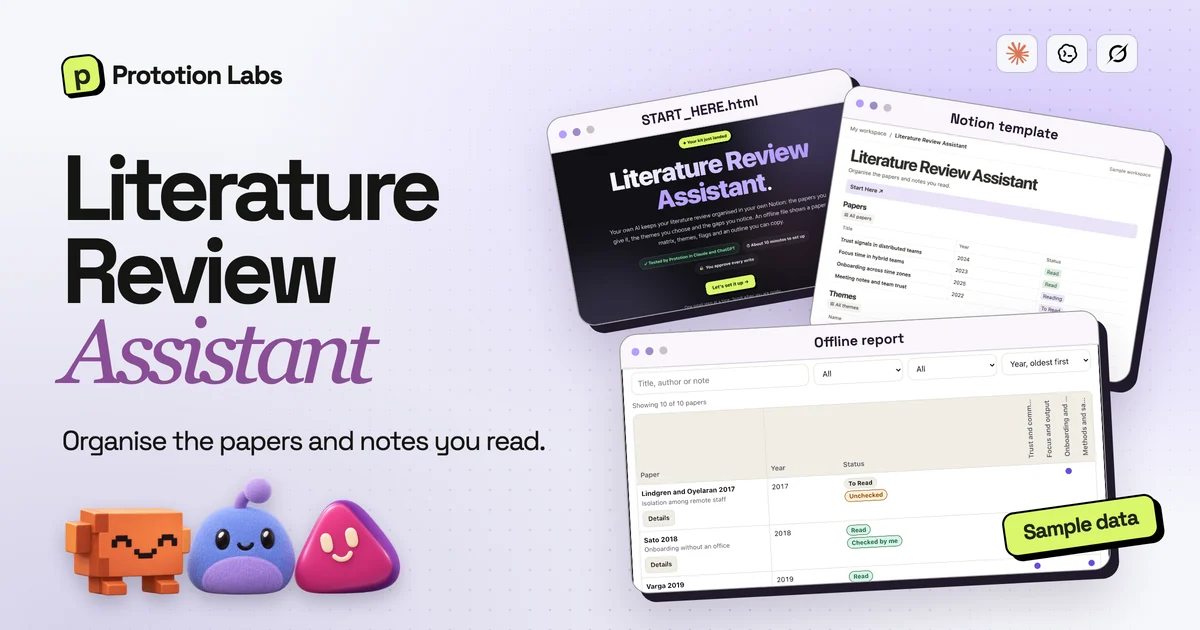
What you will actually see.
Screens from the kit's sample report and template layout, with invented sample data.
Built for one job. Done the same way every time.
- 01
You approve before anything is saved
Your AI first shows which columns it read from your file, with the first 3 rows, so you can check the dates. Then it shows one table grouped by payee, with a category for each and why (a rule you saved, or its guess). Nothing goes into Notion until you say yes. You can change a row by number ("7 is Groceries") or drop it.
- 02
It learns your rules
When you settle a category, your AI offers to save it as a rule, for example "TFL TRAVEL" is Transport, shown as "TfL". Next month those rows sort themselves, and you only look at the new ones.
- 03
Imports twice do not double up
Every row gets a key from the account, date, amount and bank text. A row already in Notion is skipped. A row that looks like one you have but is worded differently is marked CHECK, and is saved only if you say it is new.
- 04
Your money lives in your Notion
You duplicate one page into your own Notion: Transactions, Categories, Accounts and Rules. Sort, filter and fix any row yourself. No new app to sign up for.
- 05
A report you can open offline
Ask for "report". Your AI makes one HTML file for the month: money in, money out, what is left over, spending against your budgets, the split between needs, wants and savings, top payees, the largest transactions and the month-by-month trend. It loads nothing from the internet and changes nothing in Notion.
- 06
Use the AI you already have
The workflow is the product, and it is the same on each AI. You use your own plan.
From download to your first report.
- 01
Copy the Notion template
Duplicate the Bank CSV Budget page into your own Notion and check it with the checklist.
- 02
Set up your AI
Follow the Claude steps or the ChatGPT steps. Connect your Notion, and keep write actions on approval where you can.
- 03
Send your CSV, approve the table
Export a CSV from your bank's website or app and attach it, or paste its text (about 150 rows at most). Check the columns and the proposal table, answer any
?rows, and say yes. - 04
Save your rules, then ask for the report
Say yes to the rules you want kept. Say "report" for the HTML file.
One ZIP, ready to go.
One ZIP, Bank CSV Budget Kit v1.0, with these files:
START_HERE.html: open this first. Setup in three steps, how an import works, and the honest limits.Notion/TEMPLATE_LINK.md: the link to the Bank CSV Budget template, which you duplicate into your Notion.DUPLICATION_CHECKLIST.md: check your copy is right.
Claude/CLAUDE_SETUP.mdFIRST_CHAT_MESSAGE.mdbudget-csv-operator.zip: the skill you upload to Claude.
ChatGPT/QUICK_START.mdPROJECT_INSTRUCTIONS.md: you paste this into a ChatGPT project.BUDGET_CSV_CONTEXT.mdandreport.html: the two files you add to the project.FIRST_CHAT_MESSAGE.md
Agents/: early setup notes, not yet tested by Prototion.Claude_Duet/DUET_SETUP.mdOpenAI_dot/DOT_BRIEF.md,BUDGET_CSV_CONTEXT.md,report.htmlGrok_Bot/BOT_SETUP.md,BUDGET_CSV_CONTEXT.md,report.html
Report/report.html: the report template.sample/budget-csv-report.html: a sample report with invented numbers, which you can open now.
Support/TROUBLESHOOTING.md: fixes for common problems.
Accounts you probably have.
- A Notion account. A free one is fine for the template itself.
- Claude or ChatGPT.
- Claude: any plan, including Free. You need code execution and file creation turned on, and the Notion connector.
- ChatGPT: any plan that has Projects. The Free plan allows 5 project files and the kit uses 2. You need the Notion app connected.
- A web browser, to open the report.
- A CSV export from your bank. Not every AI app can read an attached file; pasting the text always works.
- Claude Duet, OpenAI dot and Grok Bot need paid plans, and some need a waitlist or a certain country. They are early notes only, not yet tested by Prototion.
Privacy
- There is no bank connection. You export the file yourself and nothing updates by itself.
- Long numbers in the bank's text (6 digits or more) are masked, like ••1234, before anything is saved to Notion, the report or the chat. Name your accounts in your own words; the kit never asks for an account or card number.
- Your CSV goes to the AI you choose, under that AI's own terms, and to your own Notion. It does not go to Prototion.
- The report file is offline: it loads nothing from the internet and sends nothing anywhere.
What it cannot do.
- It sees only the CSV files you give it. It cannot connect to your bank, and it does not update itself: export a new CSV and ask for an import.
- Categories are guesses until you approve them. Rules make the next import faster, not perfect.
- Banks change their CSV layout and payee text. If the columns look different, your AI asks you again before importing.
- The numbers are only as complete as the CSVs you import. Cash and any account you have not imported are missing.
- One report is one currency. Accounts in other currencies get their own report.
- The AI works only while you chat with it. There are no reminders or alerts.
- Claude can save the report file for you. Other AIs may only print its code, and then you save it yourself.
- This is a record of your spending. It is not financial, tax or debt advice.
Who it is not for.
- You want a live link to your bank, or numbers that update by themselves. This works from exported files.
- You want an app that nudges you about overspending. It has no reminders.
- You want transactions sorted without looking at them. You approve the table first, every time.
- You do not want to use Claude or ChatGPT, or Notion.
- You want advice on what to do with your money. This only shows you where it went.
Bank CSV Budget: FAQ
Has Prototion tested this?
Tested by Prototion in Claude and ChatGPT. The Claude Duet, OpenAI dot and Grok Bot notes are early and not yet tested by Prototion.
Which plans do I need?
Claude: any plan, including Free. You must be able to turn on code execution and file creation and connect Notion. ChatGPT: any plan that has Projects. The Free plan allows 5 project files and the kit uses 2. You also need a Notion account. Claude Duet, OpenAI dot and Grok Bot need paid plans, and some need a waitlist or a certain country.
Does it connect to my bank?
No. You export a CSV from your bank's website or app and give it to your AI. Nothing is read from your bank and nothing updates by itself. For new transactions, export a new CSV and ask for an import.
Where does my CSV go?
To the AI you choose, under that AI's own terms, and to your own Notion once you approve. Not to Prototion. The report file is offline: it loads nothing from the internet and sends nothing anywhere.
What about my account and card numbers?
Name your accounts in your own words ("Everyday current account"). Any run of 6 or more digits in the bank's text is masked, like ••1234, before it is saved to Notion, the report or the chat. If your CSV has a column with full numbers, you do not have to send it: delete that column first.
Does the AI save things without asking?
It asks first. It shows the columns it read, then a table of every row, and waits for your yes. A rule is saved only after a separate yes. In Claude you can also set the Notion write tools to "Needs approval", so it asks twice.
Are the categories right?
They are guesses until you approve them. The table shows whether each came from a rule you saved or from the AI's guess, and rows it is not fairly sure about are left as `?` for you to decide. Check the table before you say yes.
What are SKIP and CHECK?
SKIP means the row is already in Notion, so it is not written again. CHECK means a row has the same account, date, direction and amount as one in Notion but the bank wrote it differently (a payment can change wording when it posts). It is saved only if you say it is new. Two real coffees at the same price on one day are both kept.
Can it delete or change my transactions?
It never deletes a transaction, category, account or rule. It does not change the date, amount, direction or bank text of a row already in Notion. If a row is wrong, fix it in Notion yourself. It will change a category when you ask.
My dates look swapped, day and month.
If every day in your CSV is 12 or less, 03/04/2026 could be 3 April or 4 March. Your AI should ask. Check the first 3 rows it shows before you say yes, and say "the dates are day first" (or "month first") if they are wrong.
Why does the report not match my bank balance?
The report counts only the CSV files you imported, in one currency at a time, and leaves out rows in Transfer categories (money moved between your own accounts). It does not read balances. Cash and accounts you have not imported are missing.
What if my AI cannot read the attached file or cannot save the report?
Not every AI app can read an attached CSV; open it in a text editor and paste the rows (about 150 at a time). Some AIs only print the report as code. Save it as a plain-text file named `budget-csv-report.html` and open it in your browser.
How many rows can I import at once?
Up to 400 rows per import. For a longer CSV, your AI imports one month at a time, oldest first. If you paste text, about 150 rows at once.
Will it remind me or warn me when I overspend?
No. The AI works only while you chat with it. The report shows which categories are over budget when you open it.
Is this financial advice?
No. It is a record of where your money went. It gives no investment, tax or debt advice.
Bank CSV Budget. Yours in your Notion.
Bank CSV Budget Kit by Prototion Labs. For Notion. This is not made by or endorsed by Notion, Anthropic or OpenAI.
Pairs well with.
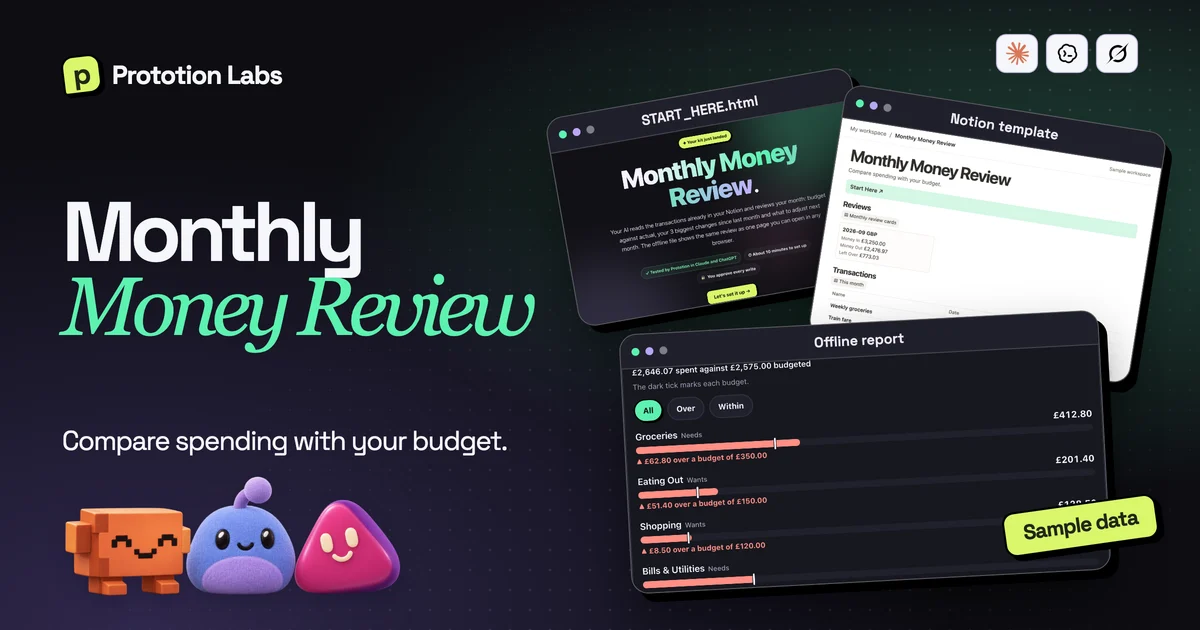
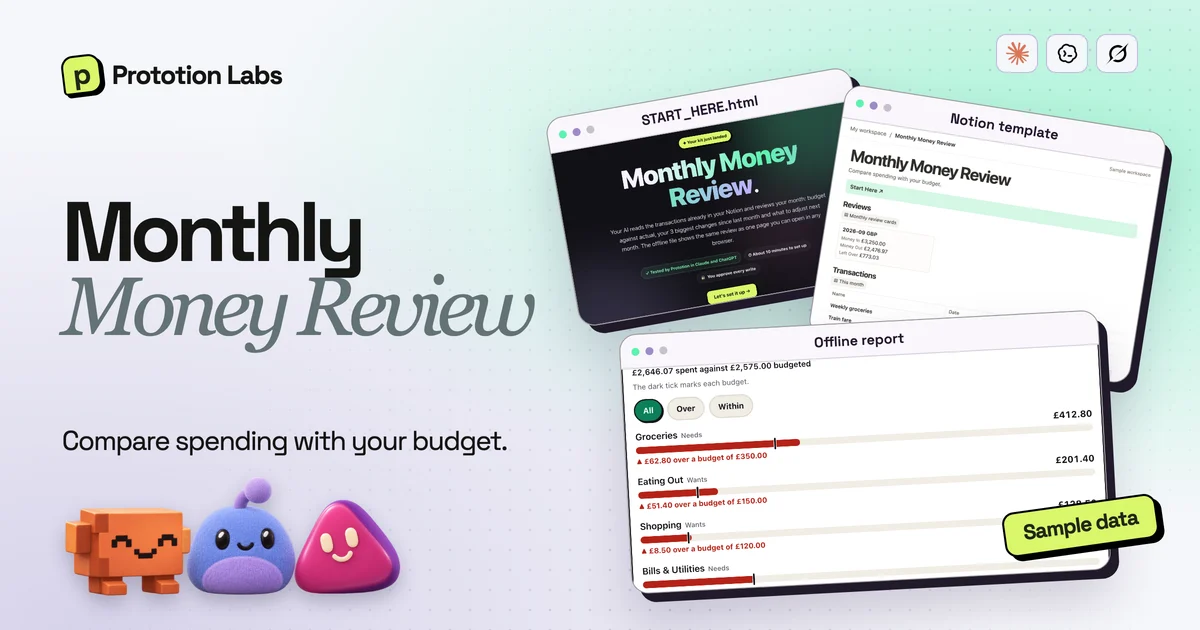 Monthly Money ReviewYour AI reviews your month: budget against actual, the 3 biggest changes, and what to adjust next.
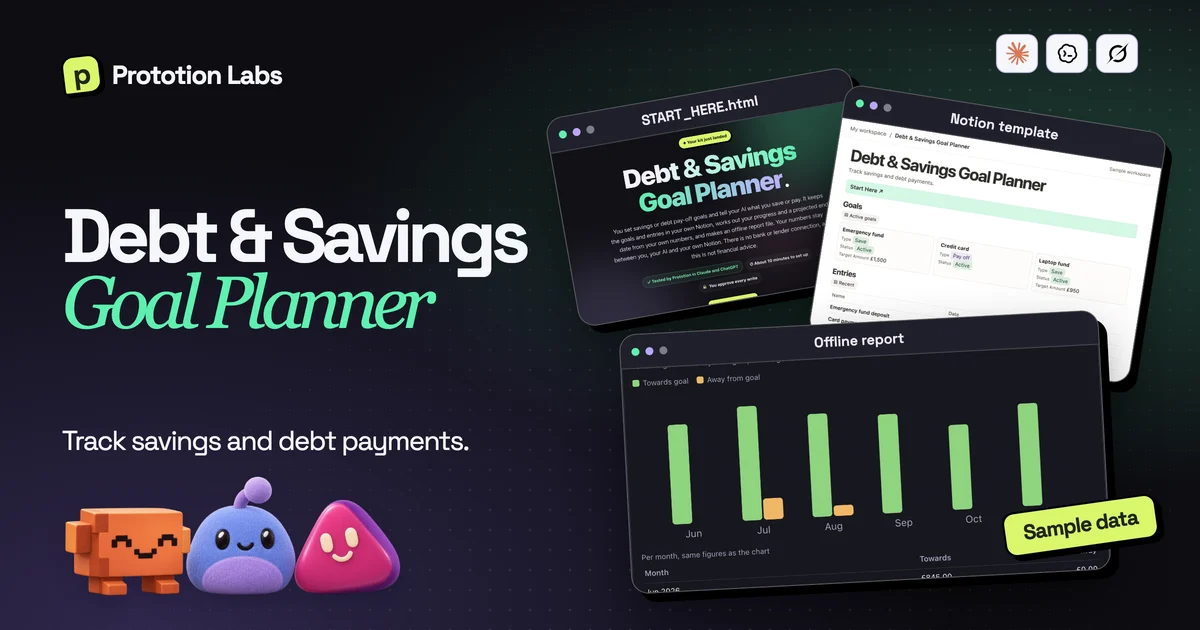
 Debt & Savings Goal PlannerSet a savings or debt goal. Tell your AI what you put in. See your progress and an end date.
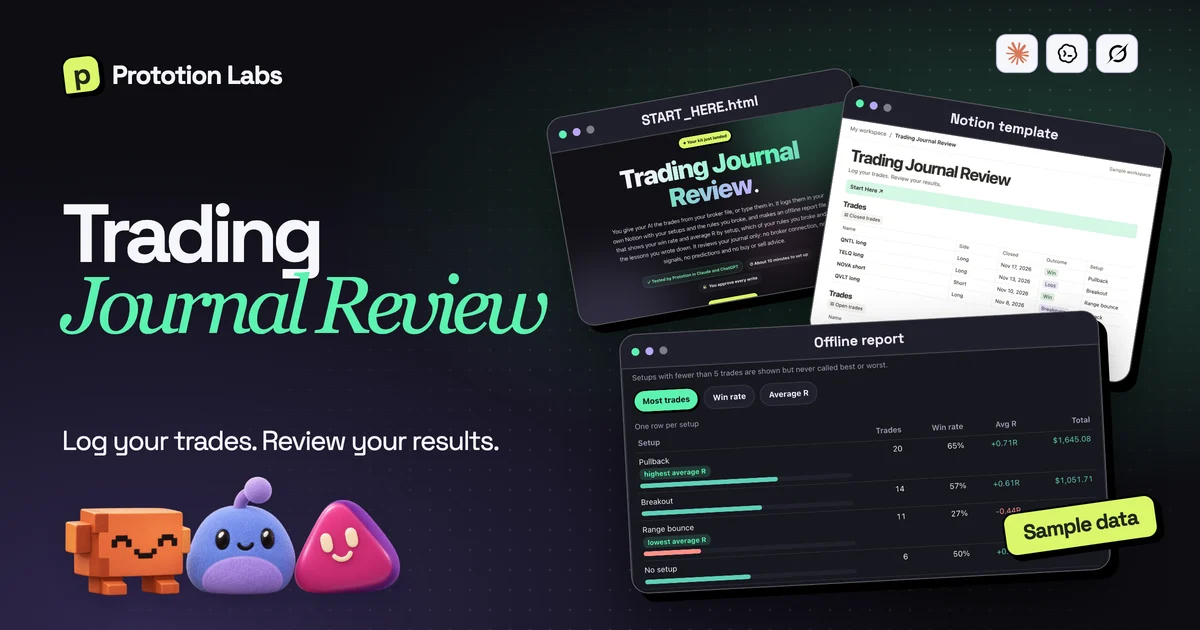
 Trading Journal ReviewGive your AI your trades. It logs them in your own Notion and shows you what your own record says.
Every kit. One download.
All 16 workflow kits in one ZIP: study, money, planning and habits. Each one has its own Notion template, Claude Skill, ChatGPT files and offline report. $99 instead of $334 one by one.