Exam Cram Planner
Paste your syllabus and exam date. Your AI builds a day-by-day revision plan in your own Notion.
Give Claude or ChatGPT your syllabus or topic list and your exam date. It suggests how big each topic is and how well you know it, then shows you the whole plan, day by day. You approve, it saves the plan to Notion. Miss a few days and it moves only what you missed. Ask for the report and you get one HTML file with your countdown and today's sessions.
Tested by Prototion in Claude and ChatGPT
- Notion template
- Claude Skill
- ChatGPT project files
- Offline HTML report
- Setup guide
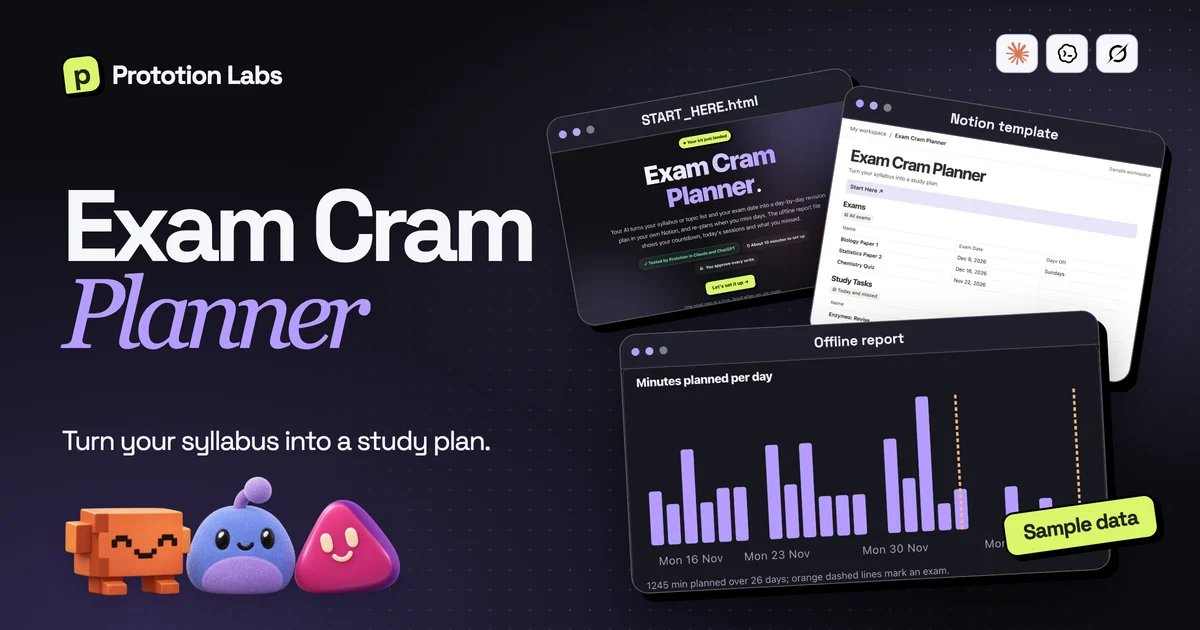
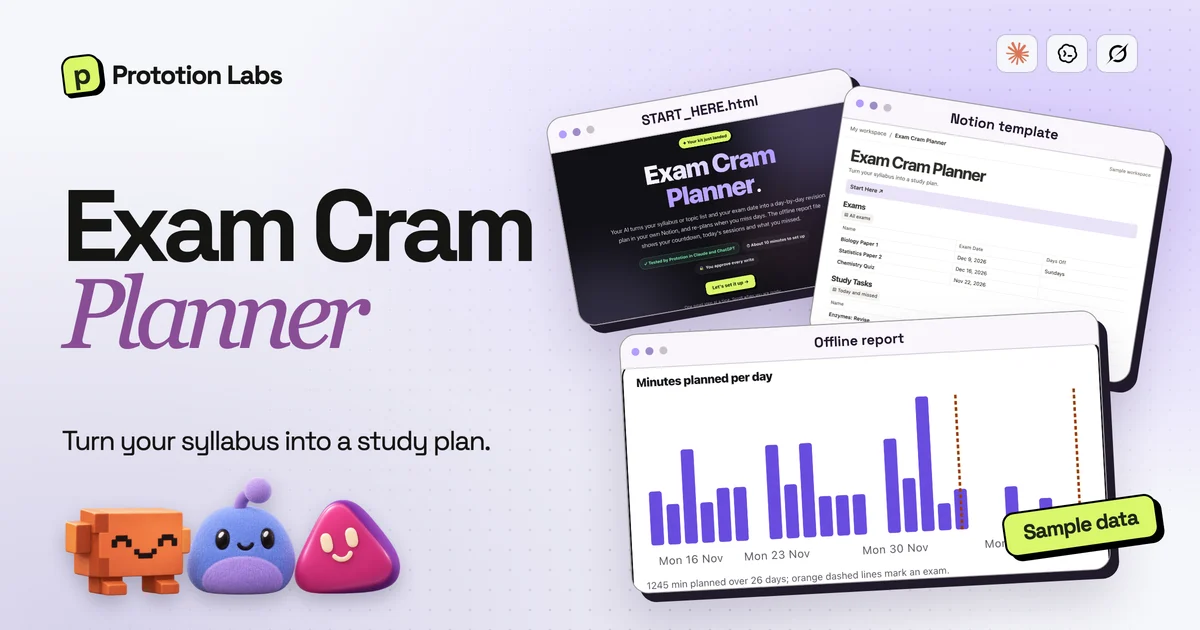
What you will actually see.
Screens from the kit's sample report and template layout, with invented sample data.
Built for one job. Done the same way every time.
- 01
You see the whole plan before anything is saved
Your AI shows the number of topics, sessions and minutes, and a table of Date, Session and Minutes. If the plan does not fit before the exam, it writes nothing and tells you by how many minutes. You choose: more minutes a day, fewer days off, or cut the sessions it lists. Nothing goes into Notion until you say yes.
- 02
The same plan every time
The rules are written down: weak topics get Learn, Practice and Revise sessions; topics you know get fewer. Sessions are 30, 45 or 60 minutes by topic size, spread across your study days, with a mock paper on the second-to-last day if you have a past paper.
- 03
Missed days do not wreck the plan
Say "re-plan" and your AI moves only the sessions you missed, shows what moves where, and waits for your yes. Nothing is deleted: a moved or dropped session stays in Notion with a note.
- 04
Your plan lives in your Notion
You duplicate one page into your own Notion: Exams, Topics and Study Tasks, with views for today and missed, a calendar and a status board. Sort, filter and fix any row yourself.
- 05
A countdown you can open offline
Ask for "report". Your AI makes one HTML file: days left to each exam, today's sessions with tick boxes, what you missed, minutes planned per day and progress on each topic. Tick what you finish, press Copy results and paste the line back so your AI saves it in Notion. The file loads nothing from the internet and cannot change Notion itself.
- 06
Use the AI you already have
The workflow is the product, and it is the same on each AI. You use your own plan.
From download to your first report.
- 01
Copy the Notion template
Duplicate the Exam Cram Planner page into your own Notion and check it with the checklist.
- 02
Set up your AI
Follow the Claude steps or the ChatGPT steps. Connect your Notion, and keep write actions on approval where you can.
- 03
Paste your syllabus and exam date, approve the plan
Answer one set of questions (minutes a day, days off, past paper), correct the sizes and confidence your AI suggests, check the table and say yes.
- 04
Ask for the report, tick, and re-plan
Say "report" for the HTML file. Paste the results line back to save your ticks. Say "re-plan" after missed days.
One ZIP, ready to go.
One ZIP, Exam Cram Planner Kit v1.0, with these files:
START_HERE.html: open this first. Setup in three steps, how planning works, and the honest limits.Notion/TEMPLATE_LINK.md: the link to the Exam Cram Planner template, which you duplicate into your Notion.DUPLICATION_CHECKLIST.md: check your copy is right.
Claude/CLAUDE_SETUP.mdFIRST_CHAT_MESSAGE.mdexam-cram-operator.zip: the skill you upload to Claude.
ChatGPT/QUICK_START.mdPROJECT_INSTRUCTIONS.md: you paste this into a ChatGPT project.EXAM_CRAM_CONTEXT.mdandreport.html: the two files you add to the project.FIRST_CHAT_MESSAGE.md
Agents/: early setup notes, not yet tested by Prototion.Claude_Duet/DUET_SETUP.mdOpenAI_dot/DOT_BRIEF.md,EXAM_CRAM_CONTEXT.md,report.htmlGrok_Bot/BOT_SETUP.md,EXAM_CRAM_CONTEXT.md,report.html
Report/report.html: the report template.sample/exam-cram-report.html: a sample report with invented topics and dates, which you can open now.
Support/TROUBLESHOOTING.md: fixes for common problems.
Accounts you probably have.
- A Notion account. A free one is fine for the template itself.
- Claude or ChatGPT.
- Claude: any plan, including Free. You need code execution and file creation turned on, and the Notion connector.
- ChatGPT: any plan that has Projects. The Free plan allows 5 project files and the kit uses 2. You need the Notion app connected.
- A web browser, to open the report.
- Claude Duet, OpenAI dot and Grok Bot need paid plans, and some need a waitlist or a certain country. They are early notes only, not yet tested by Prototion.
Privacy
- Your syllabus goes to the AI you choose, under that AI's own terms, and to your own Notion once you approve. It does not go to Prototion.
- The kit never asks for student numbers, candidate numbers, passwords or school log-ins. If you paste one, it is left out.
- The report file is offline: it loads nothing from the internet and sends nothing anywhere.
What it cannot do.
- The plan is only as good as your topic list and the size and confidence you agree on. It does not know what your examiner will ask.
- It is a planner, not a teacher or a marker. It does not explain topics, grade answers or promise a result.
- Sessions are fixed blocks of 30, 45 or 60 minutes. Real days are messier than the plan.
- Nothing updates by itself. Missed days are only noticed when you ask for a re-plan, and ticks are saved only when you paste the results line back.
- The AI works only while you chat with it. There are no reminders or alerts.
- It plans up to 60 topics per exam.
- Claude can save the report file for you. Other AIs may only print its code, and then you save it yourself.
Who it is not for.
- You want reminders or a phone alarm for each session. This has none.
- You want an AI tutor that teaches or marks your answers. This only plans your time.
- You want a plan that changes by itself every day. You ask for a re-plan.
- You do not want to use Claude or ChatGPT, or Notion.
Exam Cram Planner: FAQ
Has Prototion tested this?
Tested by Prototion in Claude and ChatGPT. The Claude Duet, OpenAI dot and Grok Bot notes are early and not yet tested by Prototion.
Which plans do I need?
Claude: any plan, including Free. You must be able to turn on code execution and file creation and connect Notion. ChatGPT: any plan that has Projects. The Free plan allows 5 project files and the kit uses 2. You also need a Notion account. Claude Duet, OpenAI dot and Grok Bot need paid plans, and some need a waitlist or a certain country.
What do I give it?
Your syllabus or topic list, and your exam date. It asks once for the minutes you can study per day, the days you cannot study, the day to start, and whether you have a past paper. For each topic it suggests a size (Small, Medium or Large) and how well you know it (Weak, OK or Strong). You correct them.
How does it decide how many sessions each topic gets?
By how well you know it. Weak topics get three sessions (Learn, Practice, Revise), OK topics get two (Practice, Revise), Strong topics get one (Revise). The session length comes from the size: 30, 45 or 60 minutes.
What if the plan does not fit before my exam?
It says so, by how many minutes, and writes nothing. You can give it more minutes a day, free up a day off, or agree to cut sessions in a fixed order, starting with Revise sessions of topics you know well. It shows exactly which sessions go before you say yes.
Does it save things without asking?
It asks first. It shows the plan and waits for your yes. In Claude you can also set the Notion write tools to "Needs approval", so it asks twice.
I missed some days. What now?
Say "re-plan". It moves only the sessions you missed (planned for a day before today), shows a table of what moves to which day, and waits for your yes. A missed session is marked Moved or Dropped, with a note, and never deleted.
How do my ticks get into Notion?
Ticking boxes in the report file only changes the file, because an offline file cannot write to Notion. Press Copy results, paste the line (it starts with EC1|) into the chat, and say yes. Pasting it twice changes nothing: sessions already Done are skipped.
Does it remind me to study?
No. The AI works only while you chat with it, and the report file is offline. It does not send reminders or alerts.
Will it tell me what is on my exam?
No. It only uses the topics you give it. It is a planner, not a teacher or a marker: it does not explain topics, grade answers or promise a grade.
Where does my syllabus go?
To the AI you choose, under that AI's own terms, and to your own Notion once you approve. Not to Prototion. The report file is offline: it loads nothing from the internet and sends nothing anywhere. The kit never asks for student numbers, candidate numbers or passwords.
Can it delete or change my rows?
It never deletes an exam, topic or session. It does not change a session you typed by hand or one that is already Done unless you ask for that one. A session you no longer need is set to Dropped, only with your yes.
How many exams and topics can it handle?
Up to 60 topics per exam, and the report shows up to 6 exams. If you give it more topics, it plans the first 60 and tells you.
What if my AI cannot save the report file?
Some AIs only print the report as code. Save it as a plain-text file named `exam-cram-report.html` and open it in your browser. If that is not possible either, it gives you today's sessions and the countdown as a list in the chat.
Exam Cram Planner. Yours in your Notion.
Exam Cram Planner Kit by Prototion Labs. For Notion. This is not made by or endorsed by Notion, Anthropic or OpenAI.
Pairs well with.
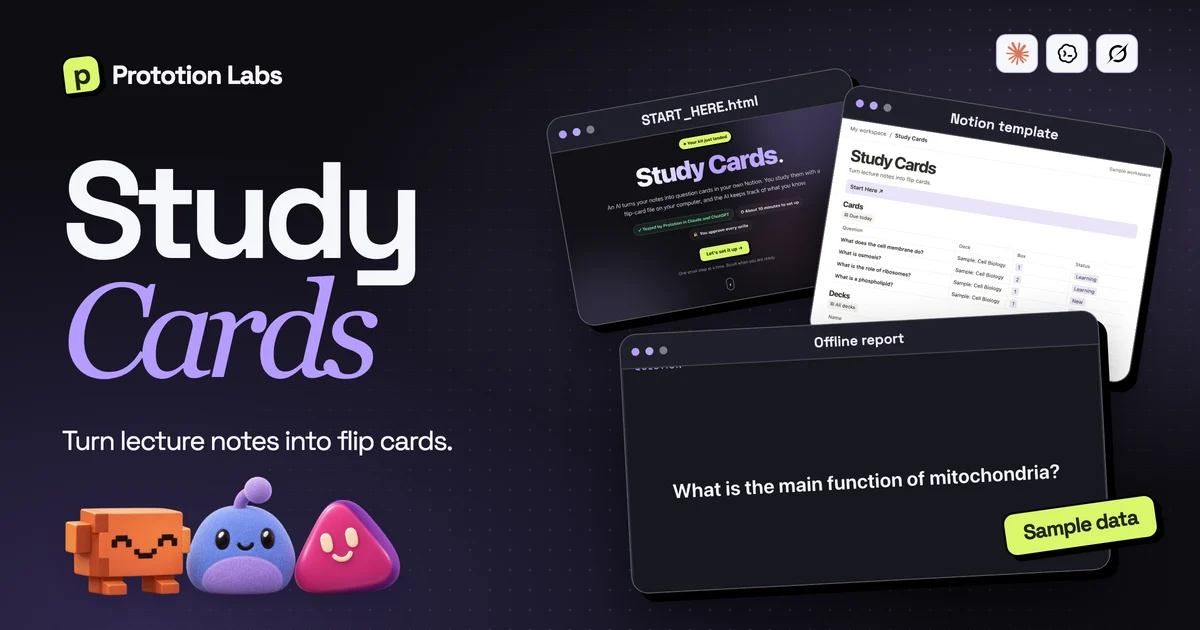
 Study CardsTurn your lecture notes into question cards in your own Notion.
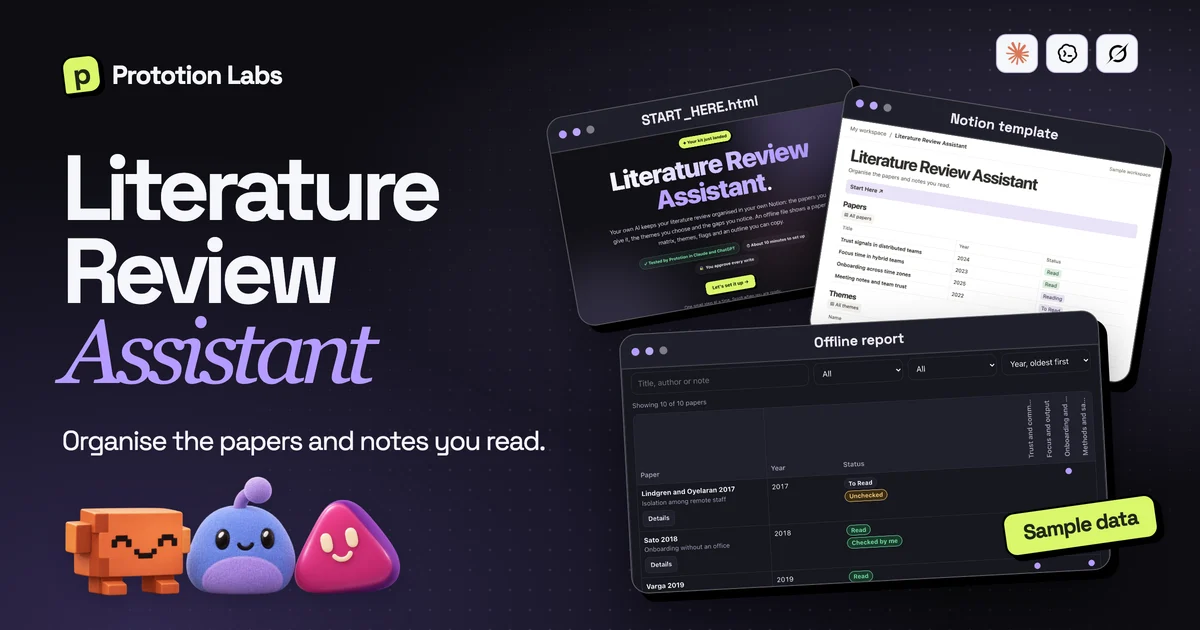
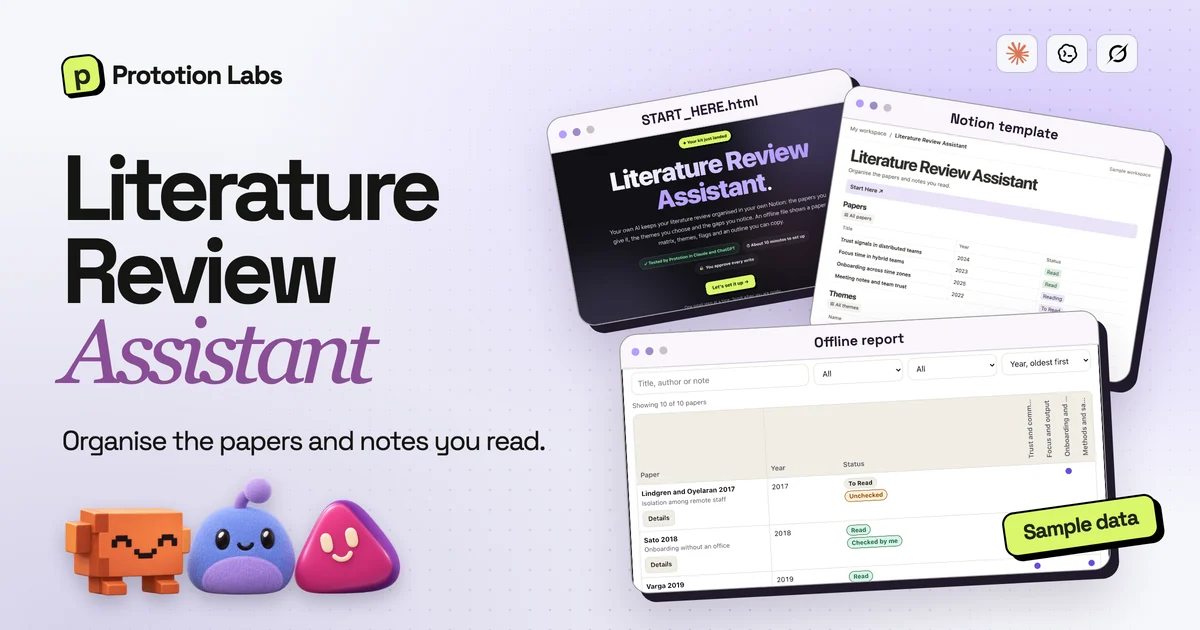 Literature Review AssistantGive your AI the papers you have read. It organises them in your own Notion and never invents one.
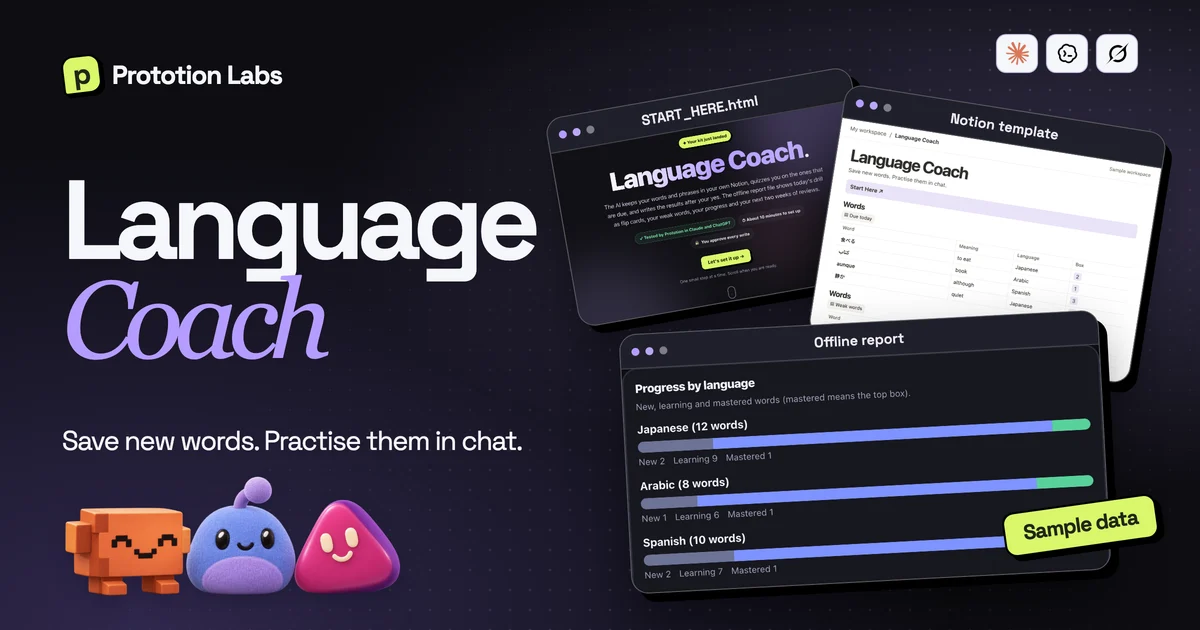
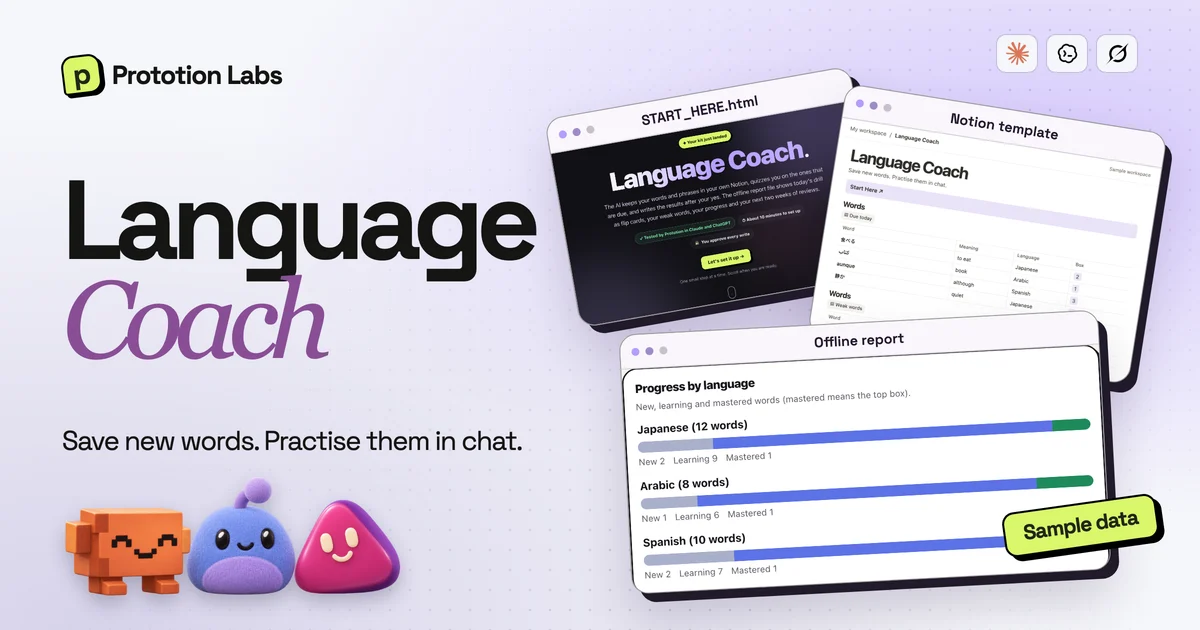 Language CoachPaste the words you are learning. Your AI keeps them in your own Notion, quizzes you on the ones due today, and shows your progress.
Every kit. One download.
All 16 workflow kits in one ZIP: study, money, planning and habits. Each one has its own Notion template, Claude Skill, ChatGPT files and offline report. $99 instead of $334 one by one.