Connect your AI to Notion
You need three things: a Notion account, Claude or ChatGPT (the free plans work), and about five minutes. At the end, your AI can read your Notion pages. Then the free Tidy Up My Workspace skill shows you what it found and which kit would help.
Steps checked against the Claude, ChatGPT and Notion help pages on 25 November 2026. These apps change often. If a button has moved, look for the same words nearby. The pictures are simple drawings, not screenshots: your screen looks different, but the words match.
Before you start: what the AI can see
- Everything your Notion account can open, in one workspace. The AI uses your own Notion permissions. It cannot open a page that you can't open. If you have more than one workspace, you pick one when you connect.
- It can change pages, if you let it. The Notion connector can read and write. Step 3 of each guide below makes the AI ask you before every change.
- You can disconnect at any time. Remove the connector in the same place you added it.
Claude
Works in Claude on the web and in the desktop app. On a Team or Enterprise plan, an owner must first add Notion under Organization settings > Connectors. Then each person connects their own account.
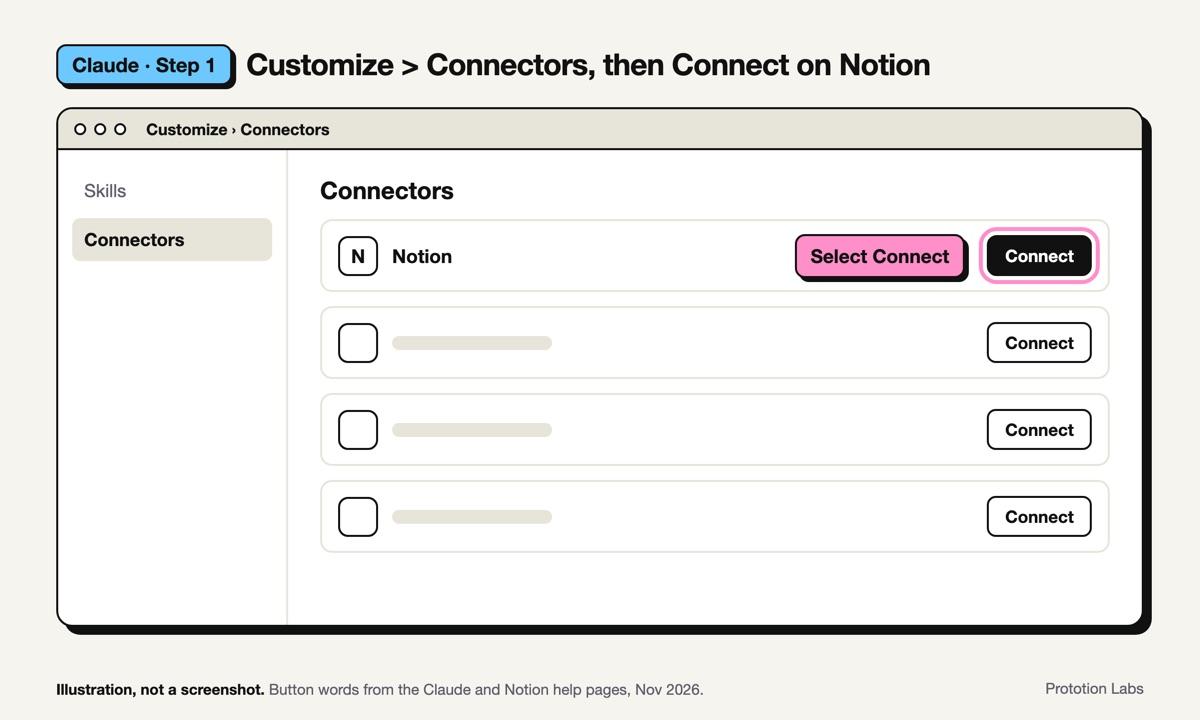
- Add the Notion connector. Go to Customize > Connectors (claude.ai/customize/connectors). Find Notion and select Connect.
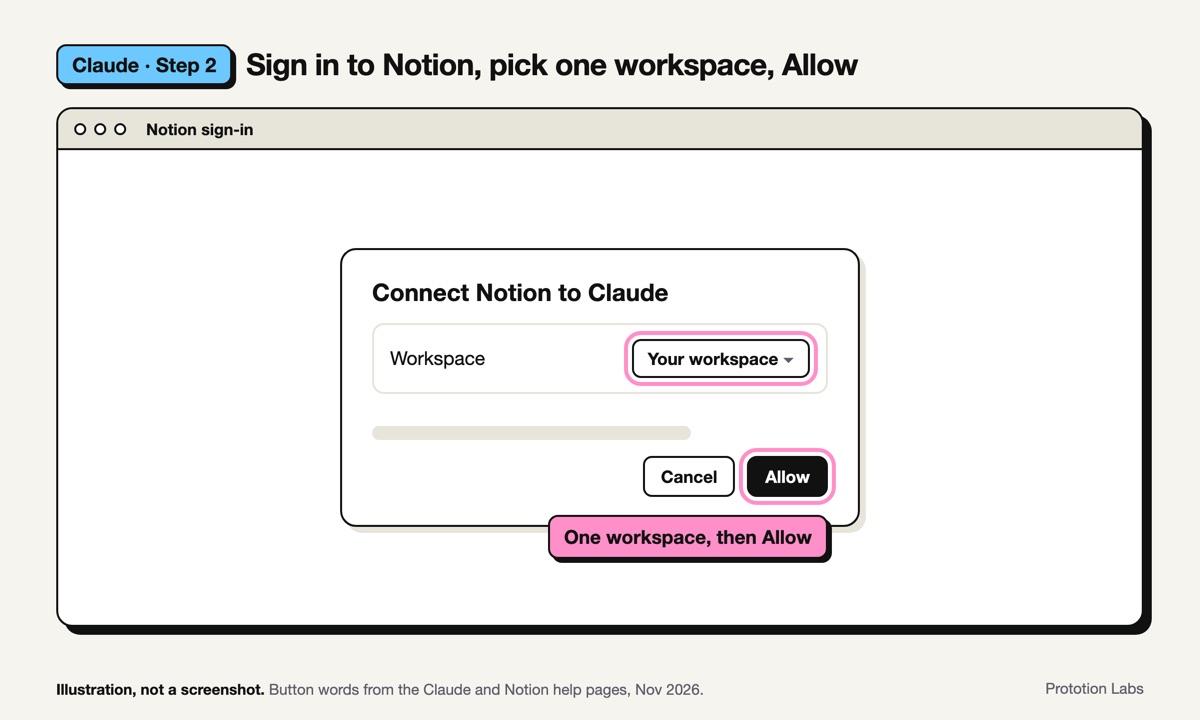
- Sign in to Notion. Choose the workspace you want. Select Allow.
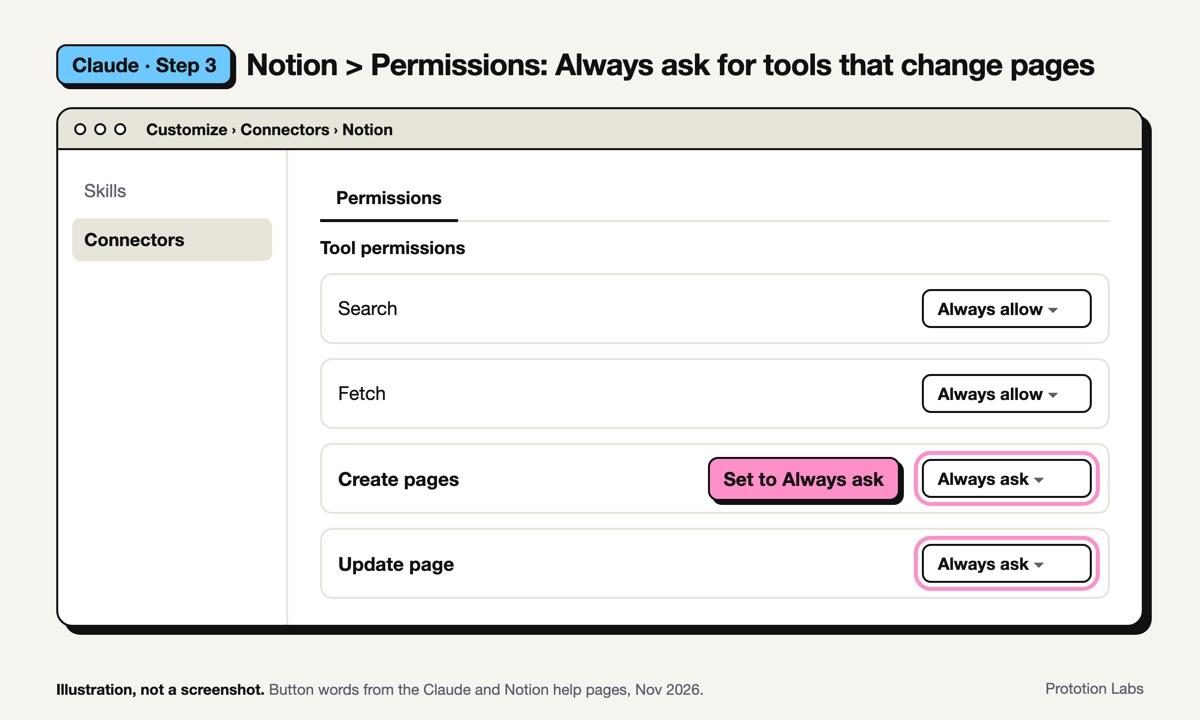
- Make Claude ask before changes. In Customize > Connectors, select Notion, then the Permissions tab. Set each tool that creates or updates pages to Always ask. This option is still rolling out. If you don't see it, Claude can still write without a prompt, so check every change it says it will make.
- Turn Notion on in a chat. In a new chat, select + (bottom left), then Connectors, and switch Notion on.
- Check it works. Ask: “Search my Notion for a page called [a page you have] and tell me its title.” If Claude names the page, you are connected.
Add the free skill. Download tidy-up-my-workspace.zip, then go to Customize > Skills > Upload and choose it. Upload the zip as it is; do not unzip it. Then, in a chat with Notion on, say: “Tidy up my workspace.”
ChatGPT
OpenAI says the Notion app depends on your plan, workspace and region. It does not list the plans. If you don't see Notion in step 1, your plan or workspace doesn't offer it. On Business or Enterprise, an admin may need to allow it.
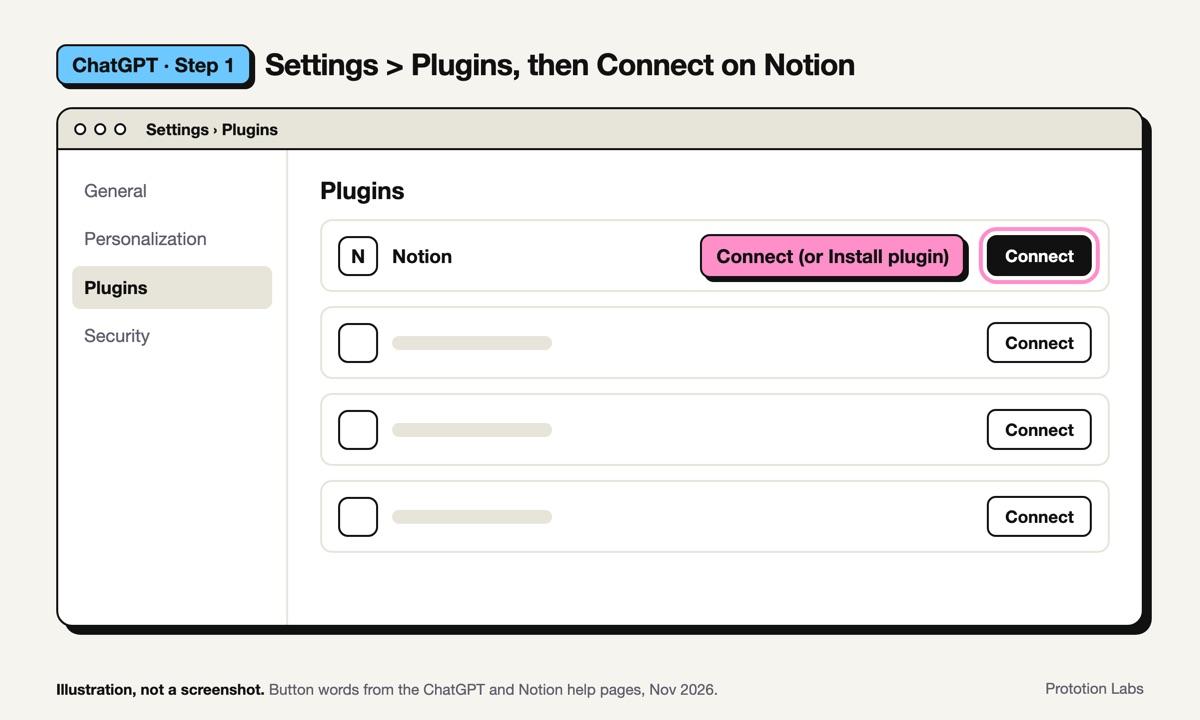
- Add the Notion app. Go to Settings > Plugins. Find Notion and select Connect (or Install plugin).
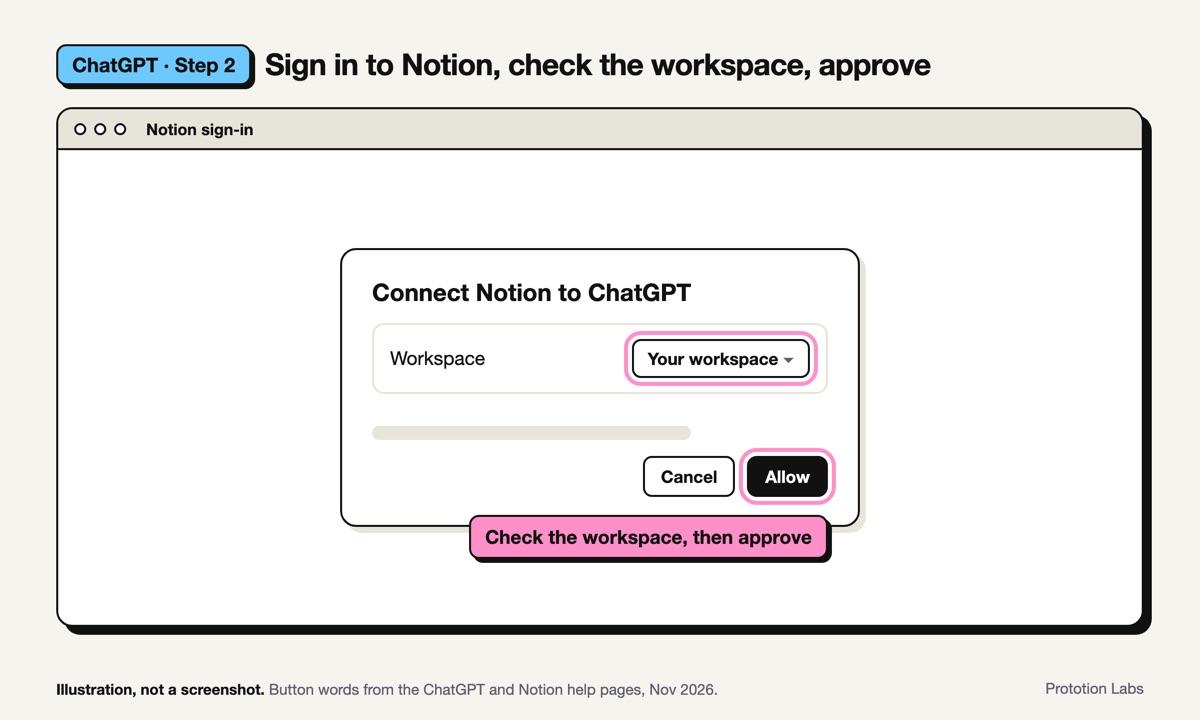
- Sign in to Notion. Choose the workspace you want, check what it lists, and approve.
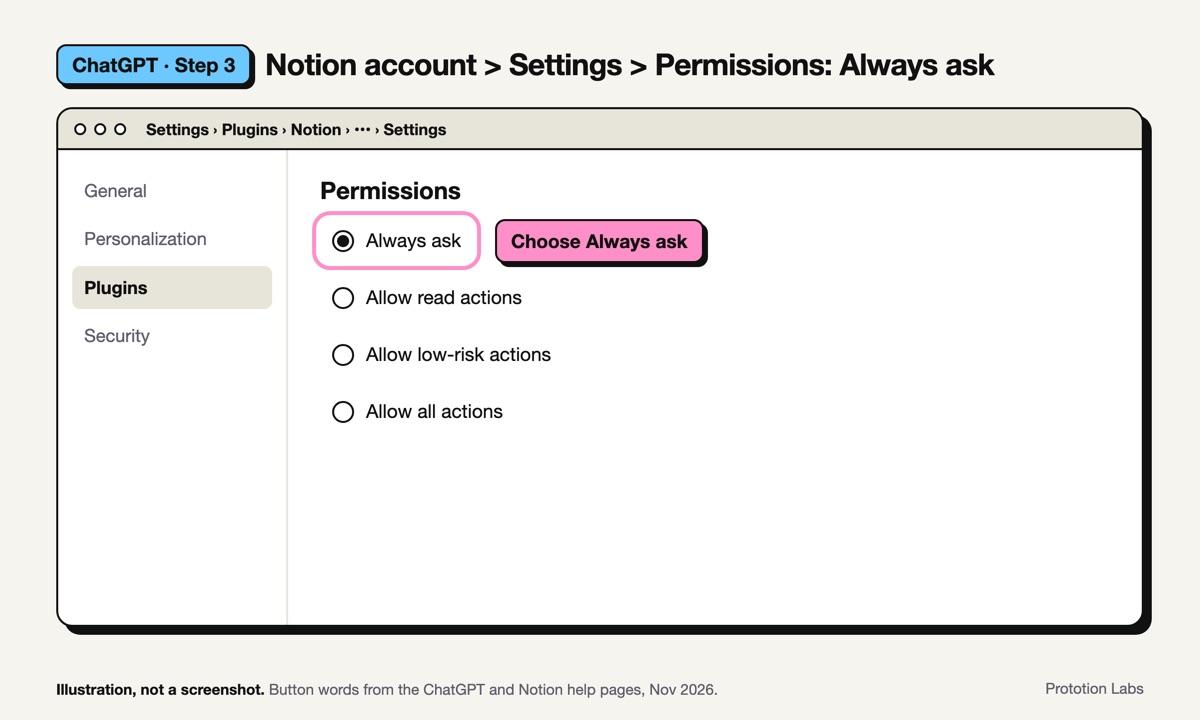
- Make ChatGPT ask before changes. In Settings > Plugins > Notion, open your connected account (••• > Settings), then Permissions. Choose Always ask. ChatGPT then shows Allow once or Decline before each action.
- Use Notion in a chat. Type @Notion, or select + and pick Notion.
- Check it works. Ask: “@Notion find a page called [a page you have] and tell me its title.”
Add the free skill. Download the ChatGPT instructions. Create a project called “Tidy Up My Workspace”. Open the project's instructions and paste everything in the file. Start a new chat in the project and say: “@Notion tidy up my workspace.”
What the free skill does
It only reads. It lists the pages and databases it can see. It marks the ones that look forgotten: repeated titles, empty databases, and pages not edited in 90 days or more. Then it suggests one Prototion Labs kit that fits what it found. It never changes, moves or deletes anything. Notion search shows only part of a big workspace, so the list is a sample.
Something wrong?
- The AI says Notion isn't connected. Turn Notion on in that chat (step 4), then ask again.
- It can't find a page you know exists. Check that you connected the right workspace. To switch, disconnect and connect again.
- Notion is missing from the list. Your plan or your company's admin may not allow it.
- Notion is greyed out or says “Disabled by admin”. Ask your workspace admin.
Still stuck? Book a free 20-minute setup call and we'll connect it together.